

Cookies and privacy

Necessary cookies support the portal. External analytics and ad measurement start only with your consent. You can accept, reject optional tools or choose categories.

Tools: Google Analytics 4, Google Ads.

Privacy policy
Skip to content
Theme
Choose a plan
Guide

PPTP on Ubiquiti EdgeRouter - setup guide (legacy)

Updated 3 November 2026 · Applies to: Ubiquiti EdgeRouter · PPTP

How to set up PPTP on Ubiquiti EdgeRouter: required credentials, client settings and checking your VPNonline connection.

Legacy guide

This guide covers an older system, interface or protocol. Screenshots do not confirm current service availability. PPTP does not meet modern security expectations. For a new setup, use a supported system and a method from the downloads page.

Before you start

  • An active service and access to your customer account.
  • The VPN username and connection password from your account - these may differ from your website sign-in.
  • The current server, profile and any PSK from the matching protocol section in your account. Do not copy example passwords or hosts from screenshots.

Open connection settings

Client settings

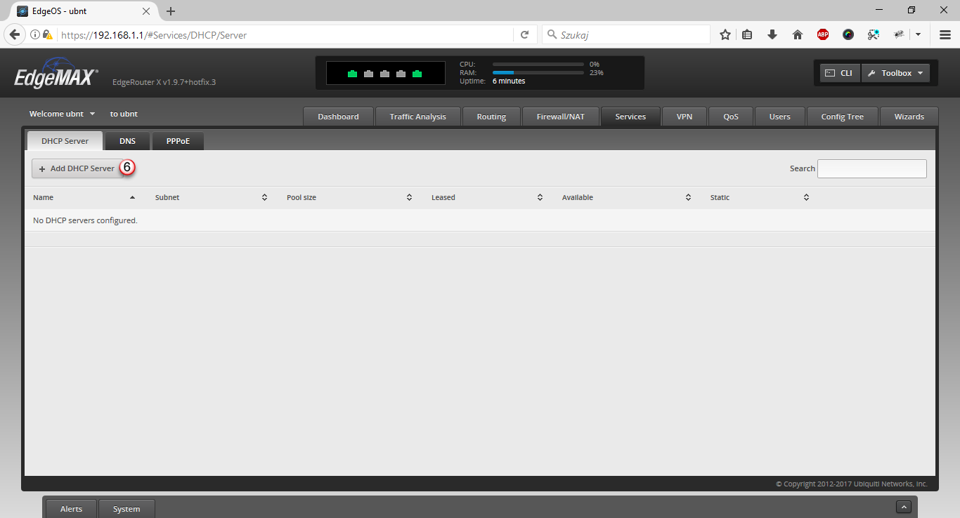
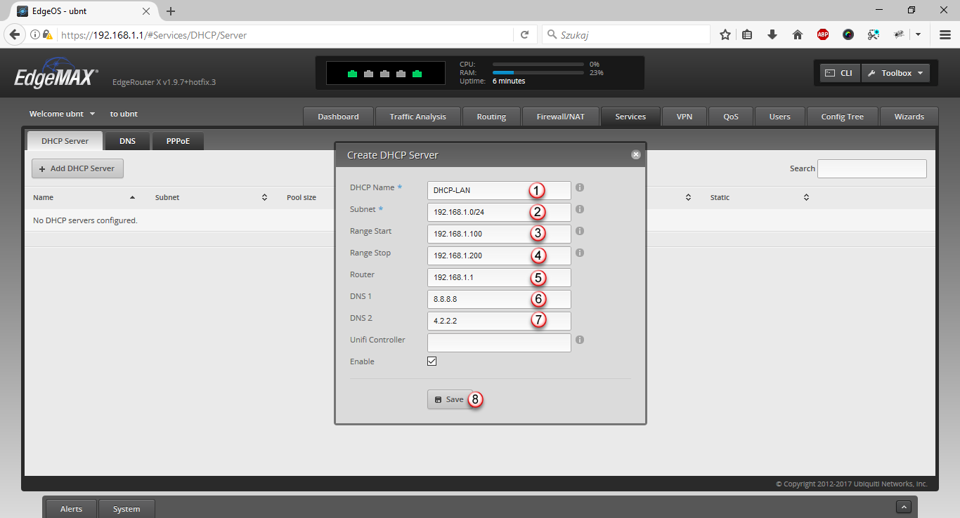
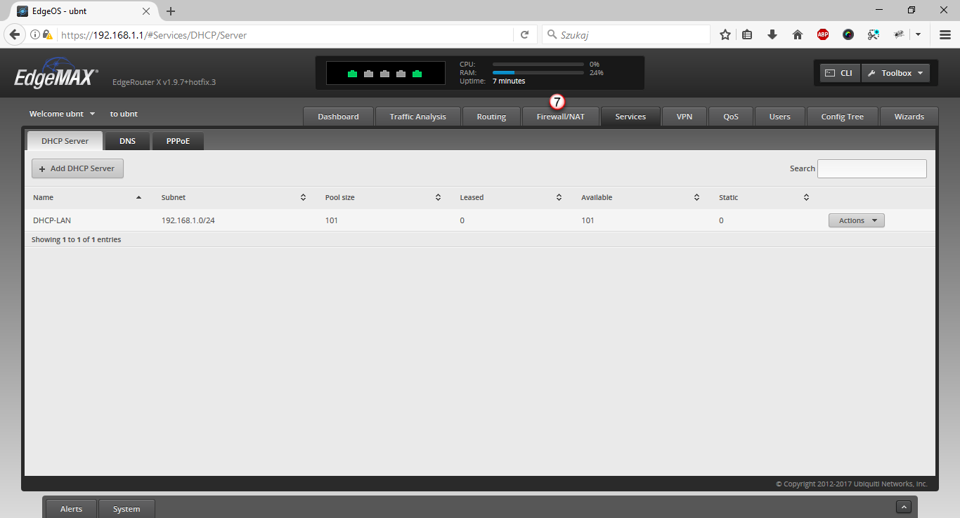
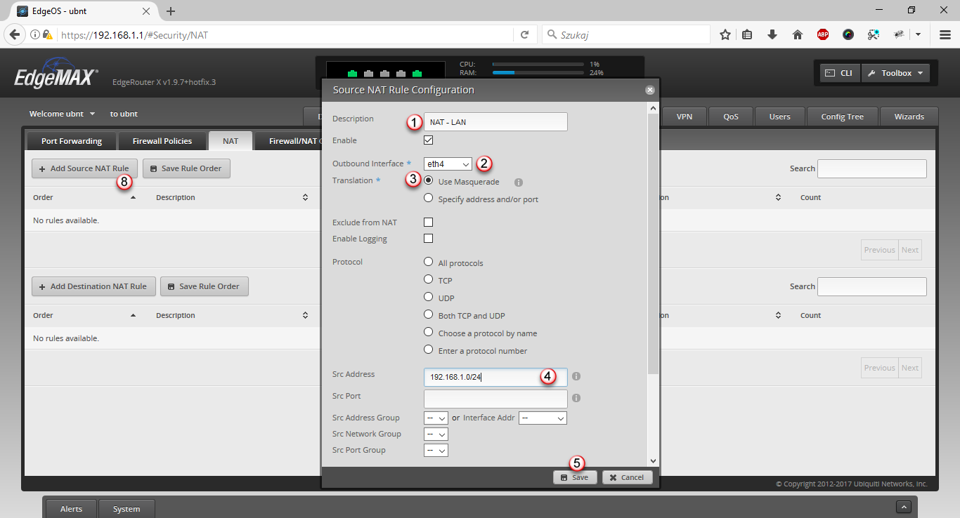
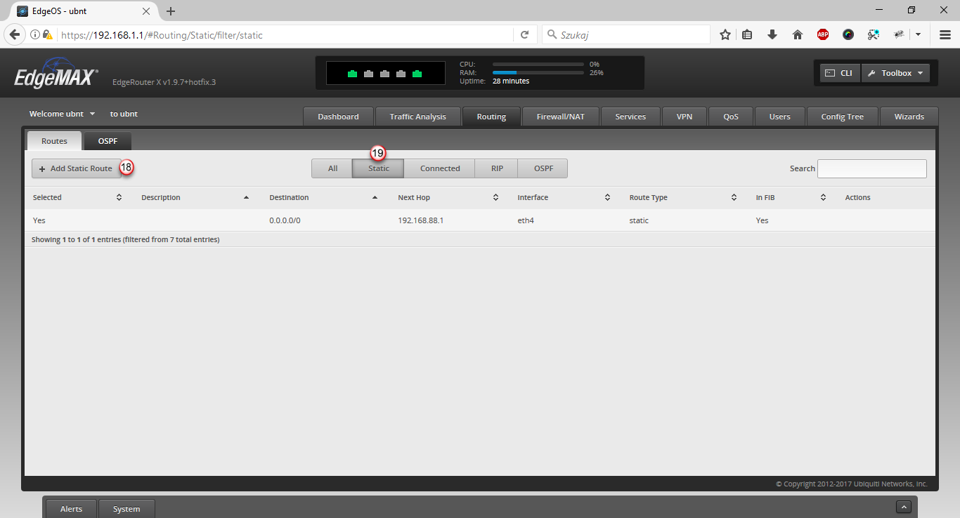
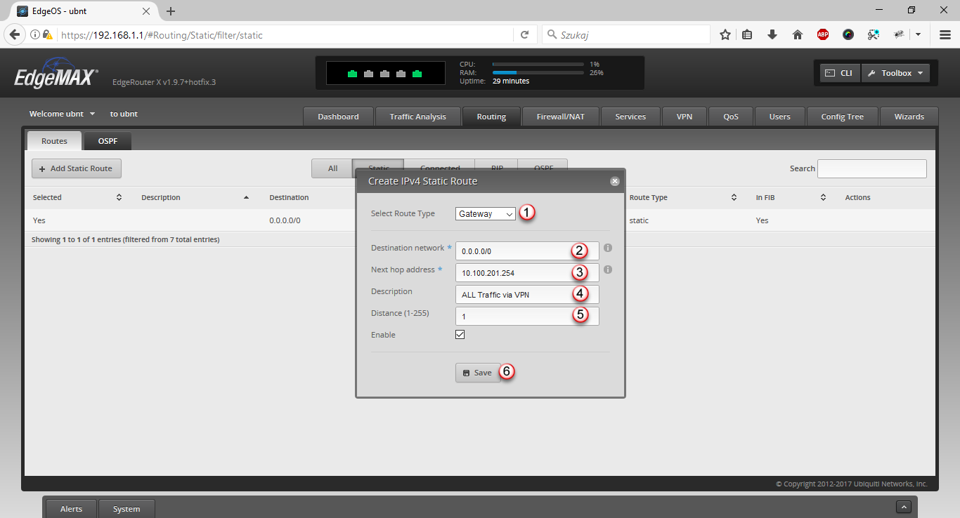
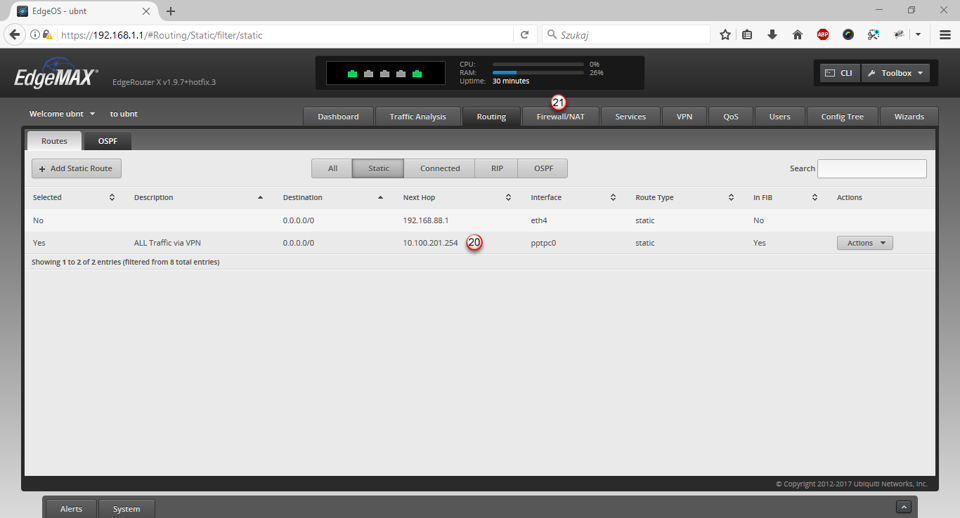
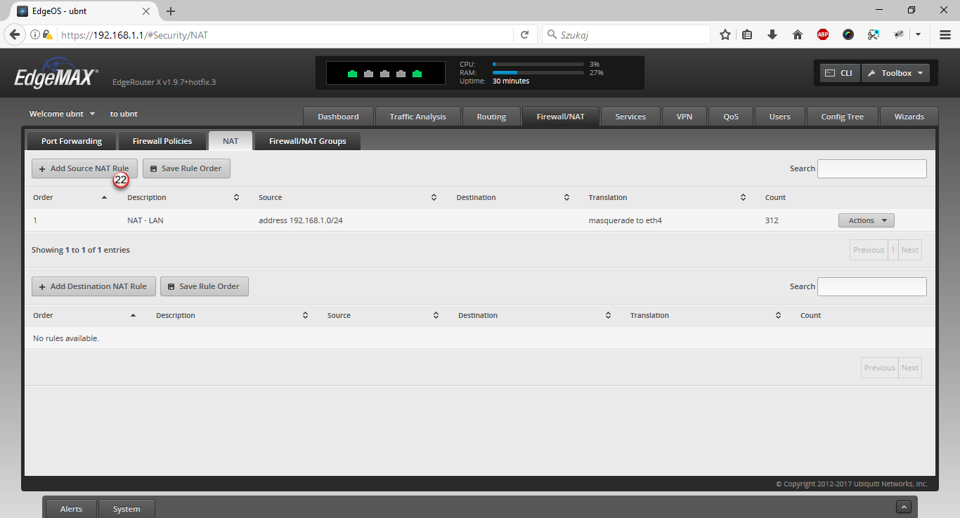
  1. Step 1: Before you start configuring a VPN connection, update your router to the latest…

    Before you start configuring a VPN connection, update your router to the latest version of the available software At the time of writing this manual, the last available version was: 1.9.7+hotfix.3
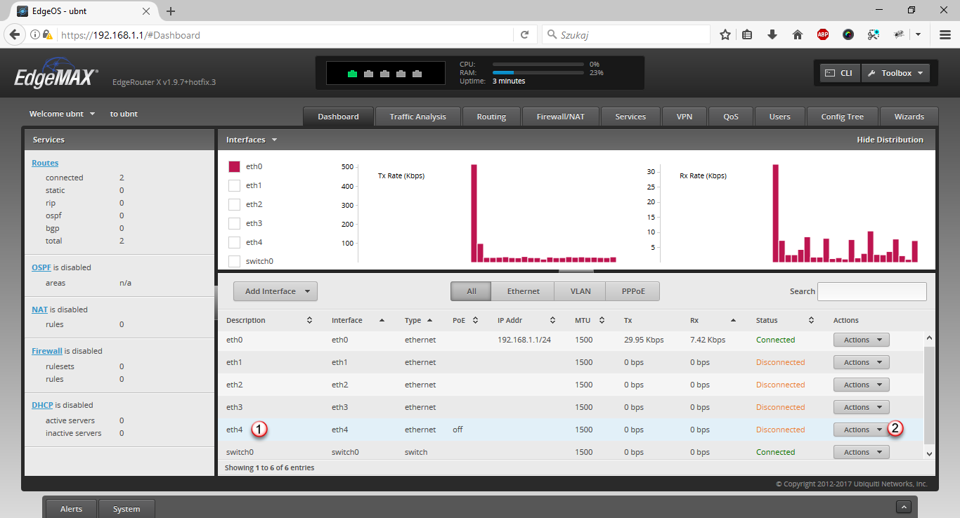
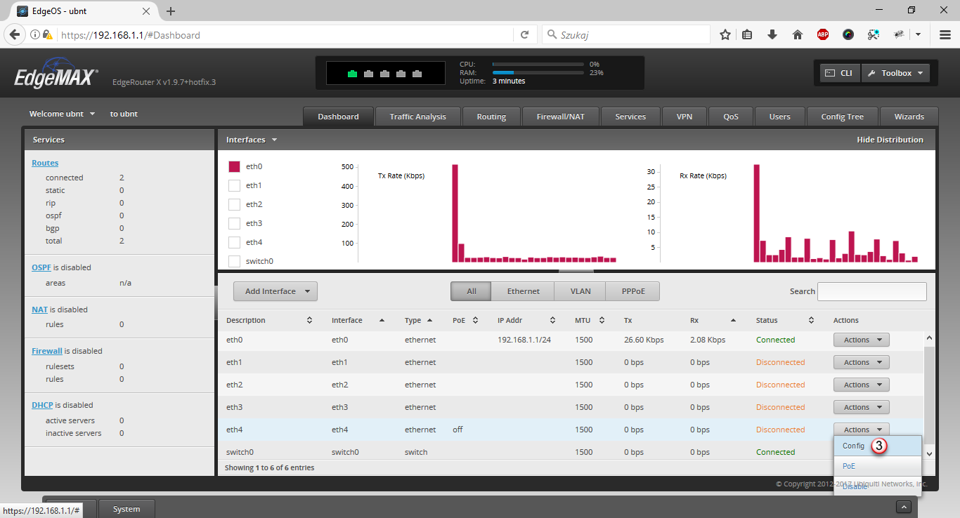
    Ubiquiti EdgeRouter - At the time of writing this manual, the last available version was: 1.9.7+hotfix.3
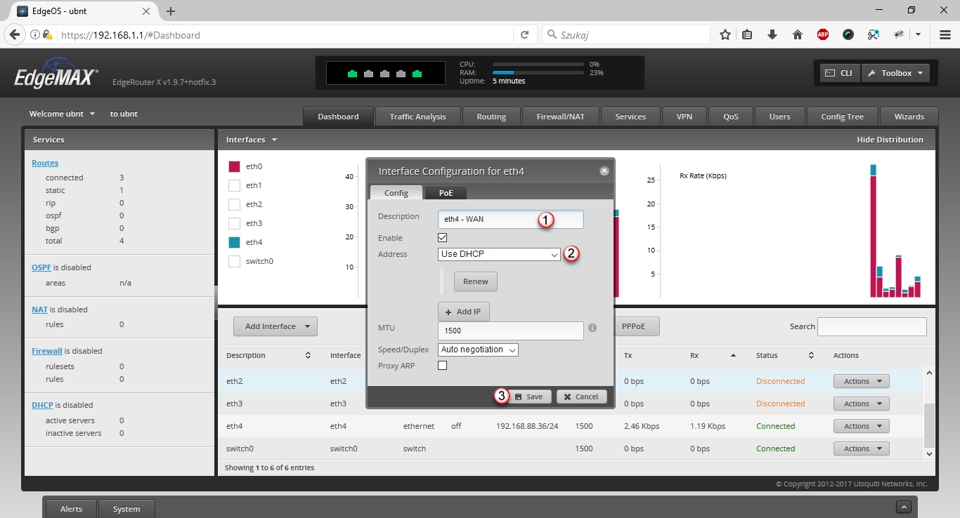
Ubiquiti EdgeRouter - At the time of writing this manual, the last available version was: 1.9.7+hotfix.3
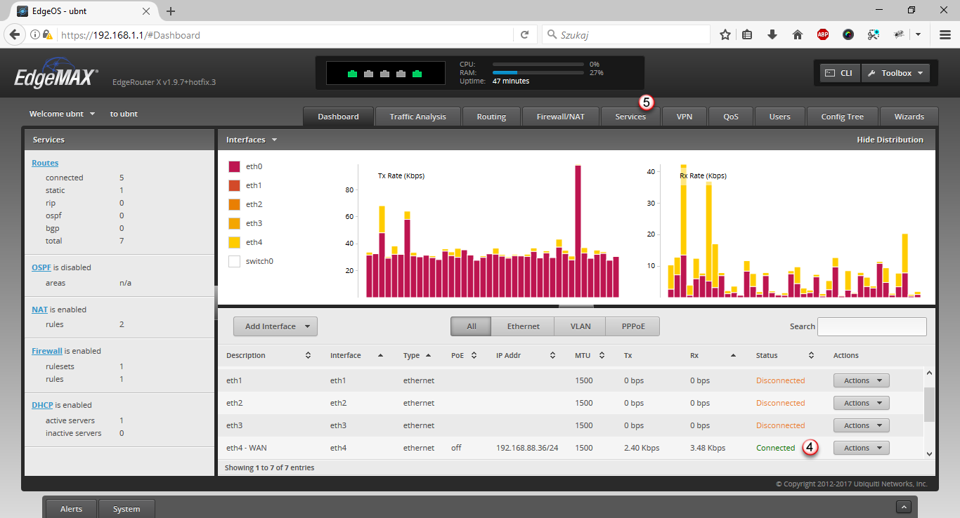
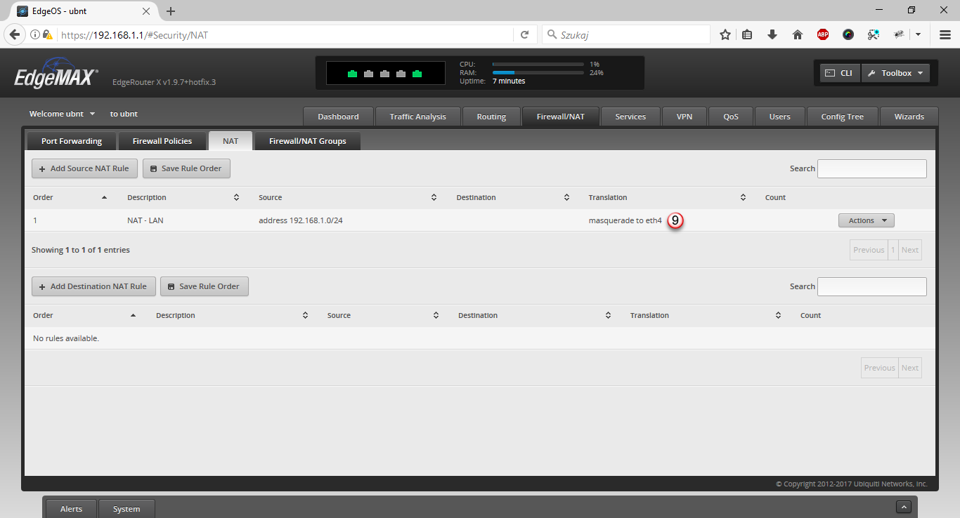
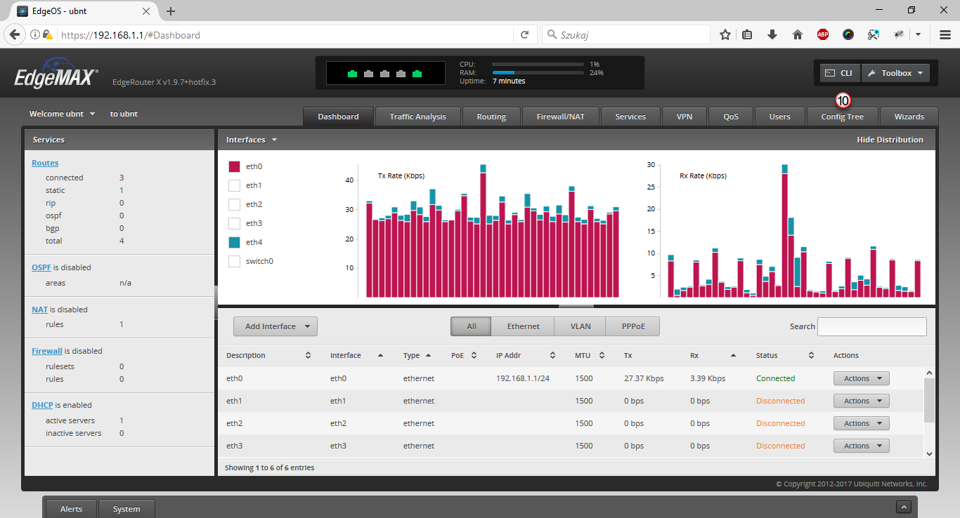
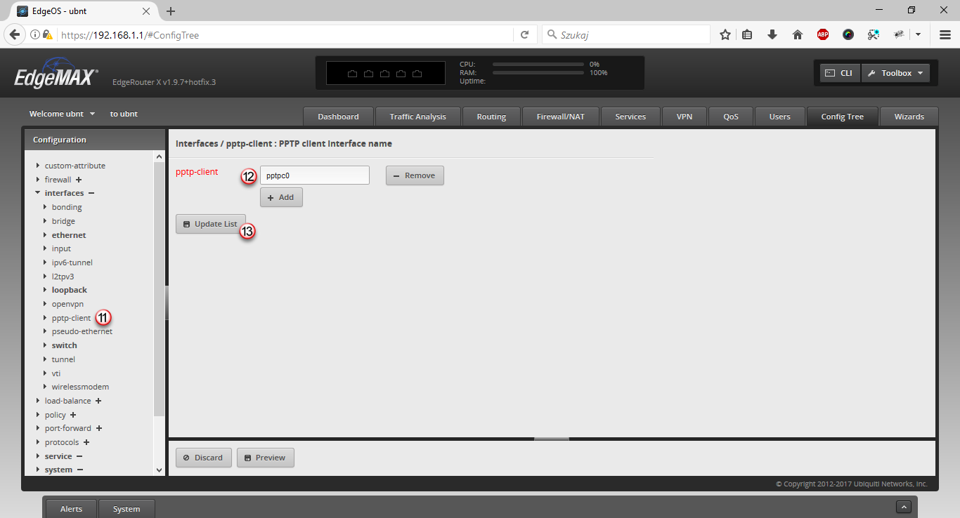
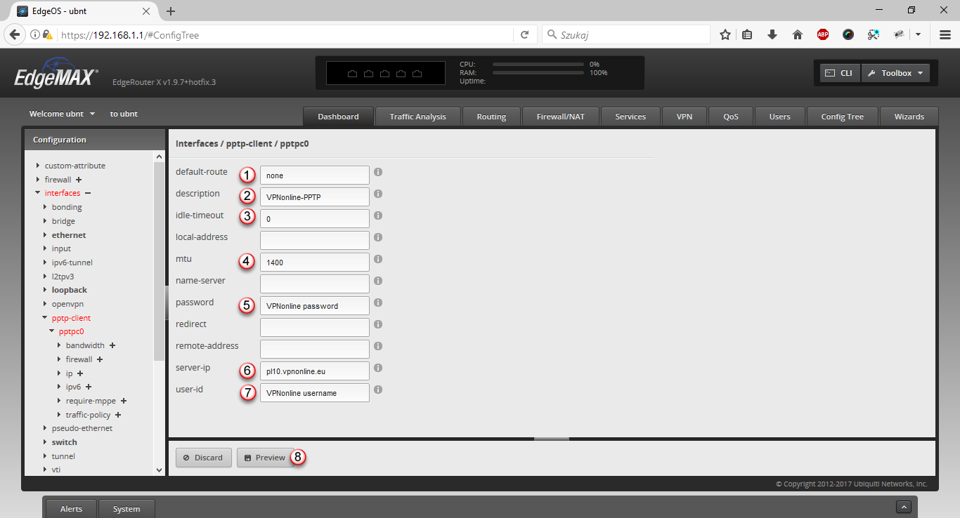
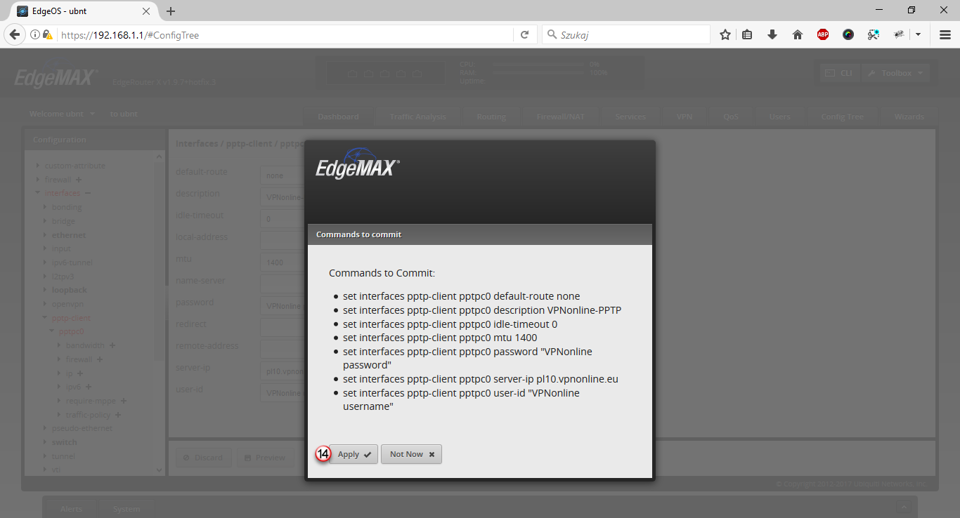
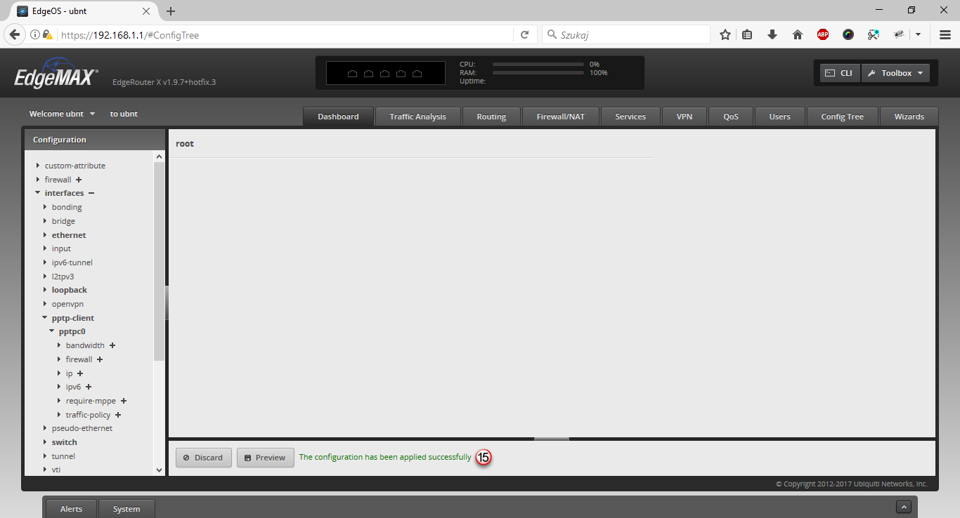
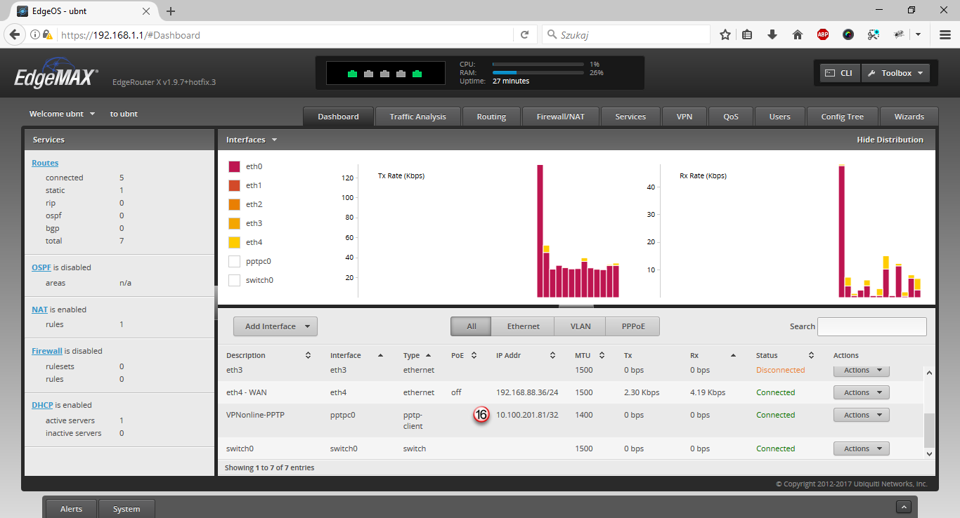
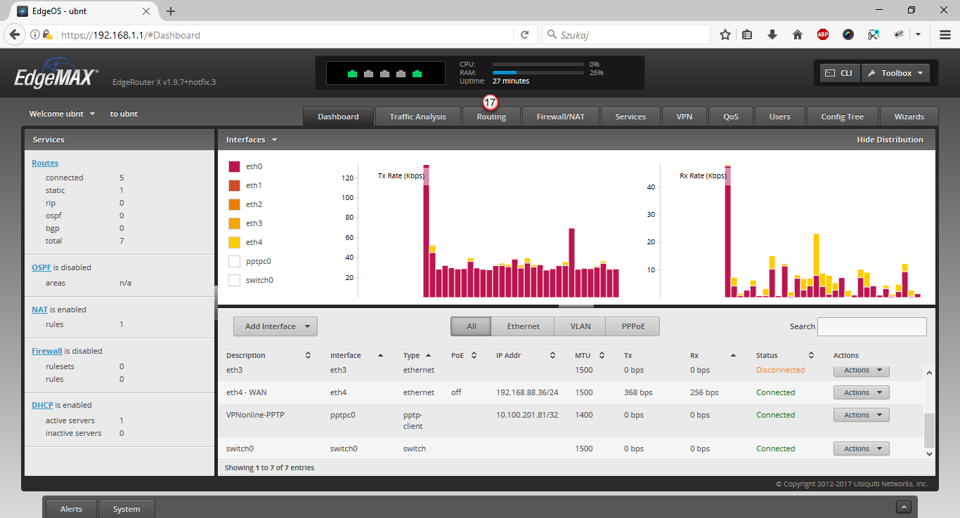
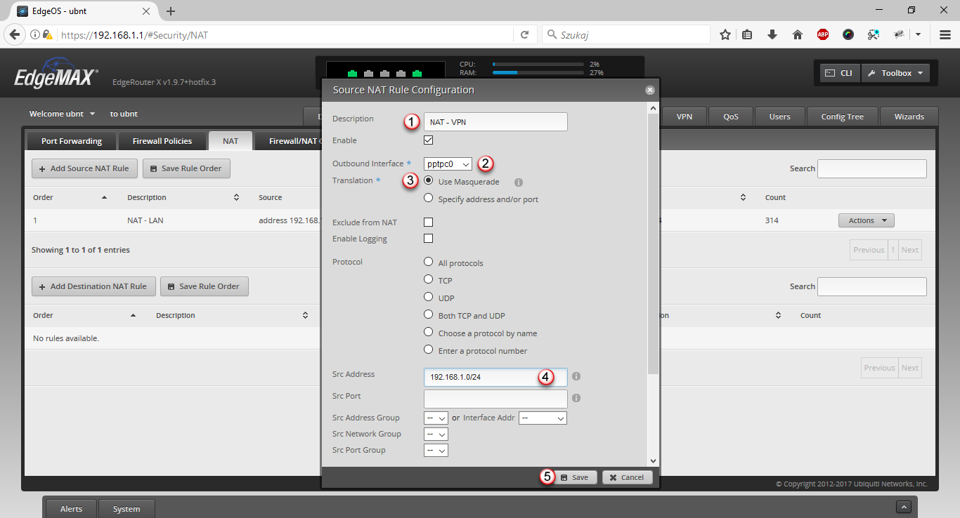
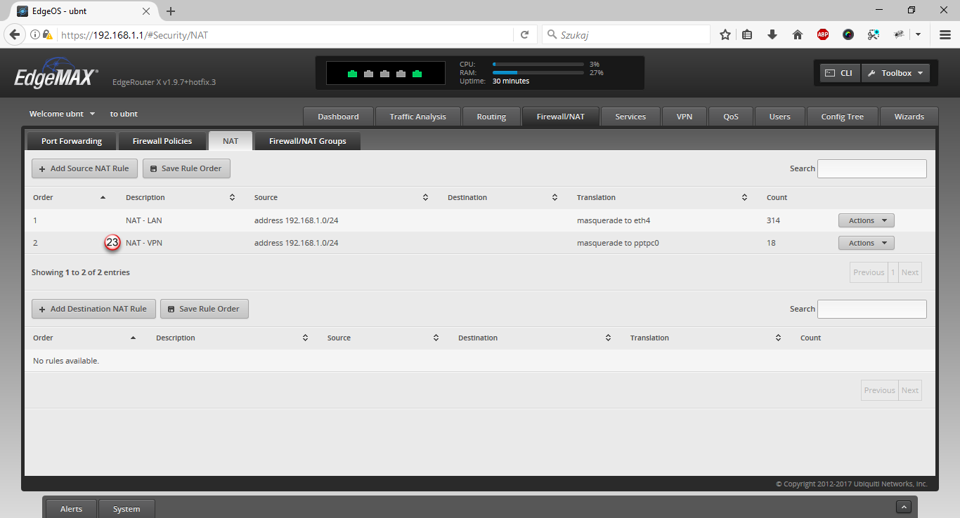
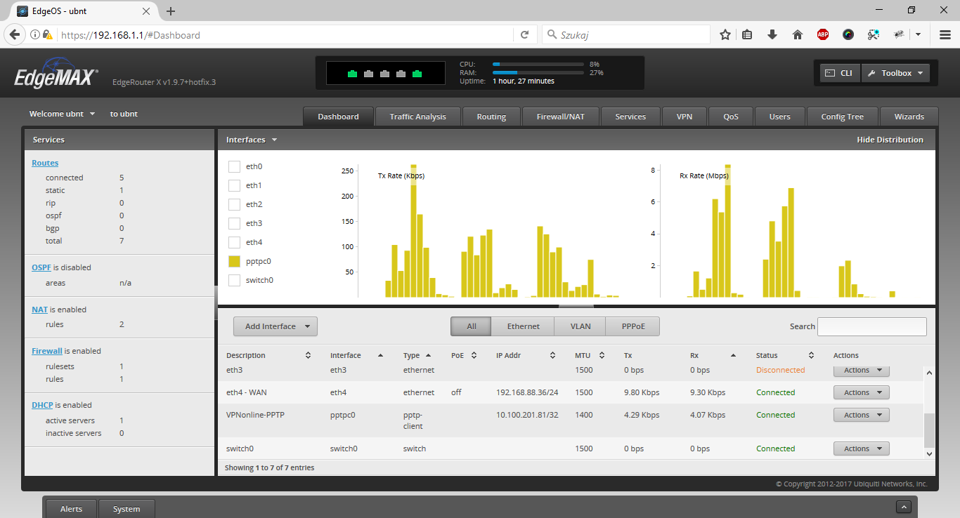

Check the connection

After the client connects, open the IP checker and compare the address and country with the selected server. Also test Internet access and DNS. A Connected status alone does not prove that all application traffic uses the tunnel.

If the connection fails

Authentication failed

Check the separate VPN username, connection password and service status in your account. Never include the password in a support request.

No Internet access or a certificate error

Download a fresh profile and check the device clock, DNS and routing. Keep certificate verification enabled. Include the device model, OS version and error message in a support request, with secrets removed.

Current apps and setup

Did this help?

We only store the answer, nothing about you.

Still not working?

Write to us. We will include this article's name, so we know what you already checked.

Write to us