

L2TP/IPsec on Windows Vista - setup guide (legacy)
Updated 3 November 2026 · Applies to: Windows Vista · L2TP/IPsec
How to set up L2TP/IPsec on Windows Vista: required credentials, client settings and checking your VPNonline connection.
Legacy guide
This guide covers an older system, interface or protocol. Screenshots do not confirm current service availability. PPTP does not meet modern security expectations. For a new setup, use a supported system and a method from the downloads page.
Before you start
- An active service and access to your customer account.
- The VPN username and connection password from your account - these may differ from your website sign-in.
- The current server, profile and any PSK from the matching protocol section in your account. Do not copy example passwords or hosts from screenshots.
Client settings
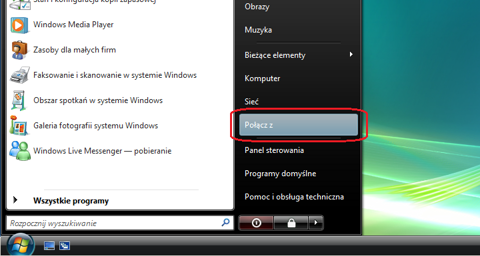
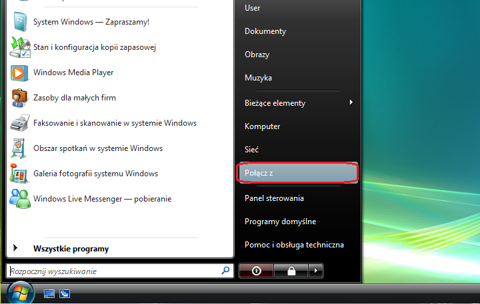
Step 1: In the first step, click START and Connect with
In the first step, click START and Connect with
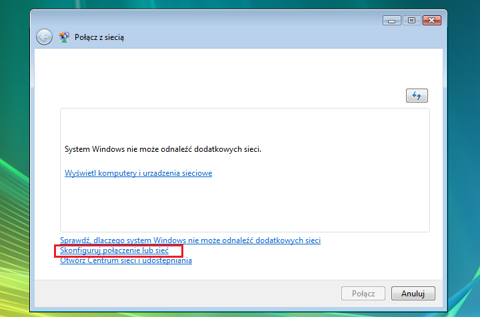
Step 2: When the window opens, select "Set up a connection or network"
When the window opens, select "Set up a connection or network"
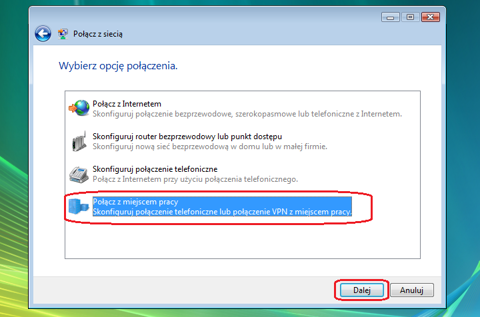
Step 3: Select "Connect with the workplace" and click "Next"
Select "Connect with the workplace" and click "Next"
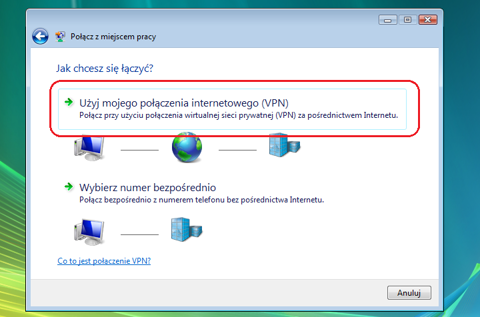
Step 4: Select "Use my Internet connection (VPN)"
Select "Use my Internet connection (VPN)"
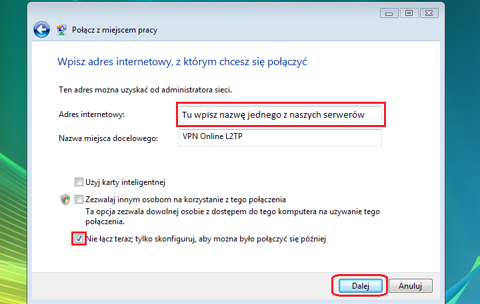
Step 5: In the "Internet address" type the name of one of the VPNonline server In the "…
In the "Internet address" type the name of one of the VPNonline server In the " Destination name" field, type a name for the connection, for example: VPN Online L2TP Select "Do not connect now, just set up so that you can connect later" In the customer panel you will find the available vpn servers: /en/account After typing the required data, click “Next”
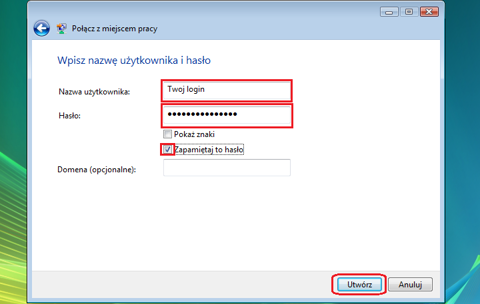
Step 6: In the "User name" field, type your User Name In the "Password" field, type your VPN…
In the "User name" field, type your User Name In the "Password" field, type your VPN password Select "Remember this password" and click "Create"
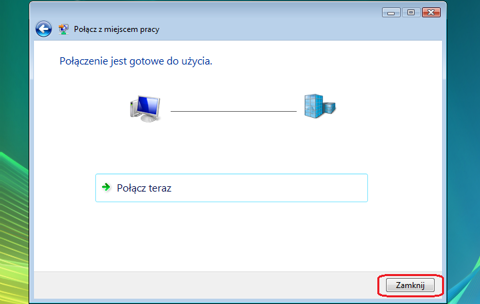
Step 7: Click "Close"
Click "Close"
Step 8: To complete the configuration, go to the "Connect with" tab
To complete the configuration, go to the "Connect with" tab
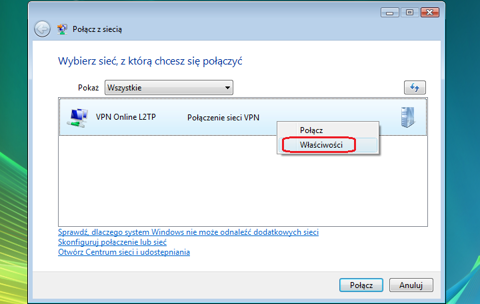
Step 9: Select "VPN Online L2TP" connection, right-click and select "Properties"
Select "VPN Online L2TP" connection, right-click and select "Properties"
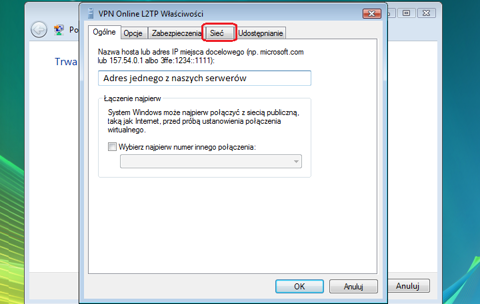
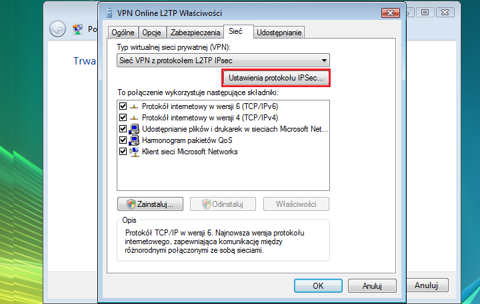
Step 10: Go to "Network" tab
Go to "Network" tab
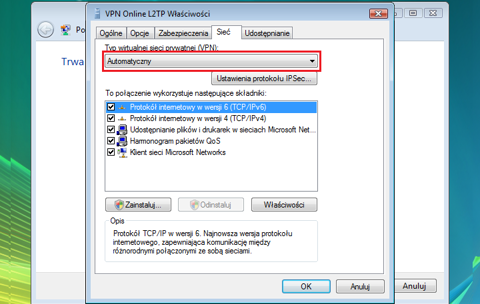
Step 11: Select and expand the "Typ of virtual private network (VPN)" tab
Select and expand the "Typ of virtual private network (VPN)" tab
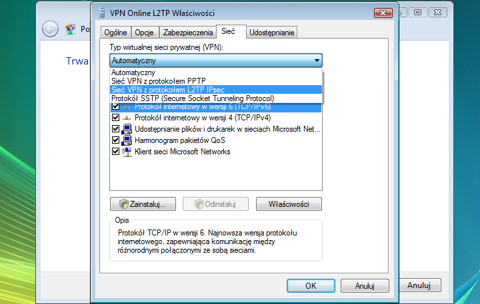
Step 12: Choose " L2TP IPsec"
Choose " L2TP IPsec"
Step 13: Next, click "IPSec settings .."
Next, click "IPSec settings .."
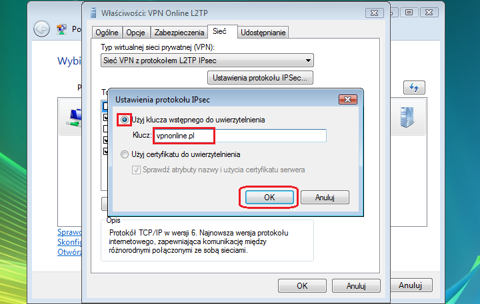
Step 14: Select "Use pre-shared key authentication" In the "Key" field, type: (current PSK…
Select "Use pre-shared key authentication" In the "Key" field, type: (current PSK from your account) Click "OK"
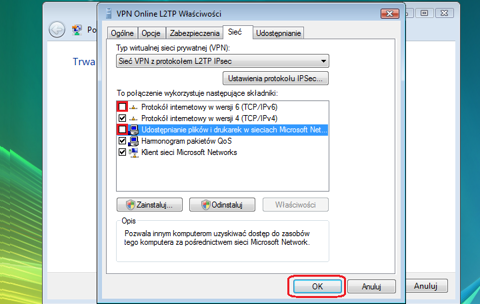
Step 15: In the "Network" tab, uncheck: - Internet Protocol Version 6 (TCP/IPv6) - Sharing…
In the "Network" tab, uncheck: - Internet Protocol Version 6 (TCP/IPv6) - Sharing printers on a network file Microsoft Click "OK"
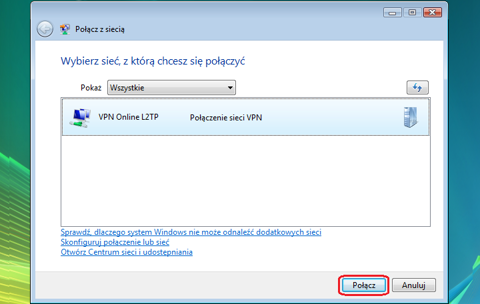
Step 16: Select "VPN Online L2TP" connection and click "Connect"
Select "VPN Online L2TP" connection and click "Connect"
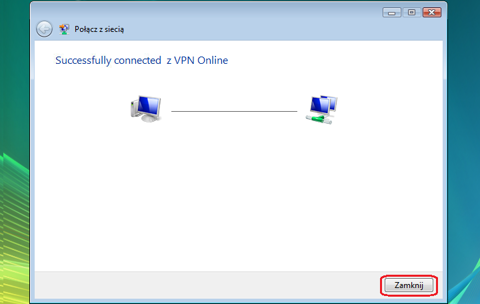
Step 17: After successful authentication, you will be connected to our server
After successful authentication, you will be connected to our server
Check the connection
After the client connects, open the IP checker and compare the address and country with the selected server. Also test Internet access and DNS. A Connected status alone does not prove that all application traffic uses the tunnel.
If the connection fails
Authentication failed
Check the separate VPN username, connection password and service status in your account. Never include the password in a support request.
No Internet access or a certificate error
Download a fresh profile and check the device clock, DNS and routing. Keep certificate verification enabled. Include the device model, OS version and error message in a support request, with secrets removed.
Did this help?
We only store the answer, nothing about you.
Still not working?
Write to us. We will include this article's name, so we know what you already checked.