

OpenVPN on Android - tablet - setup guide
Updated 3 November 2026 · Applies to: Android - tablet · OpenVPN
How to set up OpenVPN on Android - tablet: required credentials, client settings and checking your VPNonline connection.
Earlier interface screenshots
The app may look different. Obtain hosts, files, certificates and keys from the current account. Older screens do not confirm that a firmware release or protocol is supported by the current service.
Before you start
- An active service and access to your customer account.
- The VPN username and connection password from your account - these may differ from your website sign-in.
- The current server, profile and any PSK from the matching protocol section in your account. Do not copy example passwords or hosts from screenshots.
Client settings
Step 1: I the first step, download OpenVPN applicationa and OpenVPN configuration files…
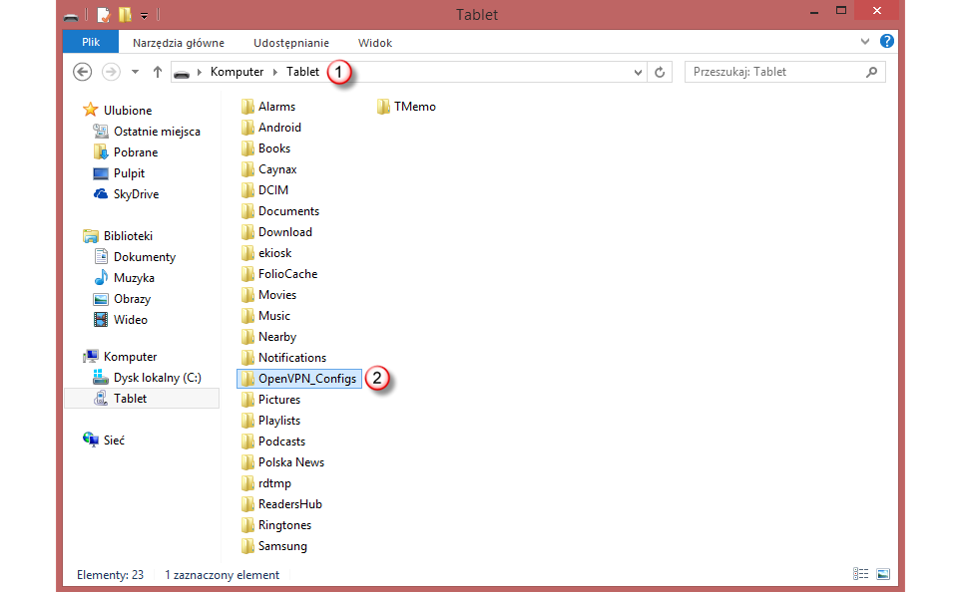
I the first step, download OpenVPN applicationa and OpenVPN configuration files from: Downloads Then connect the device with Android to PC via USB cable and go to the memory card (1) Move "OpenVPN_Configs" (2) directory with configuration files *.ovpn to memory card
Step 2: Go to the applications installed on your tablet (3)
Go to the applications installed on your tablet (3)
Step 3: Run the "OpenVPN for Android" (4) application
Run the "OpenVPN for Android" (4) application
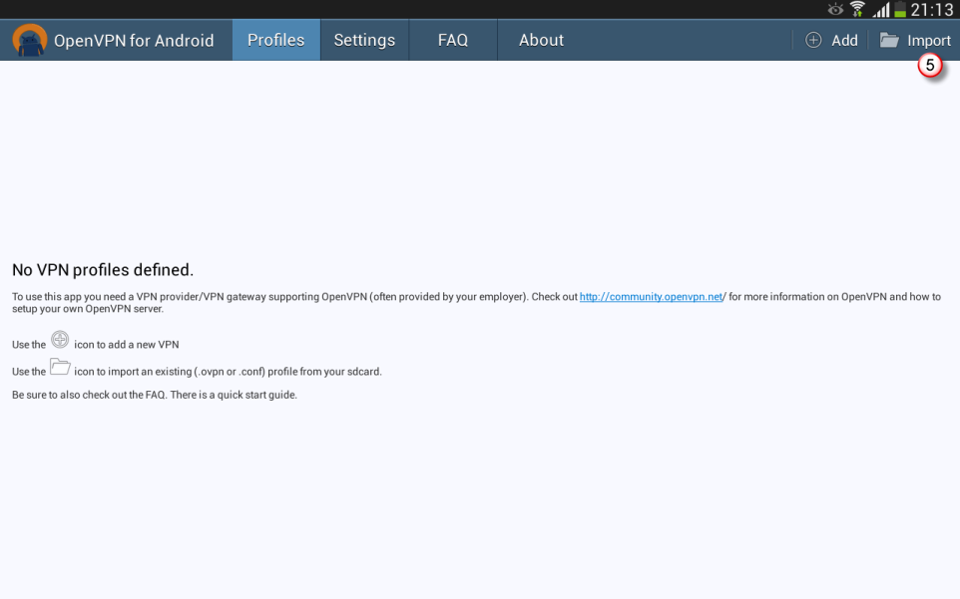
Step 4: Import files *.ovpn to OpenVPN client, by clicking on the icon directory "Import" (5)
Import files *.ovpn to OpenVPN client, by clicking on the icon directory "Import" (5)
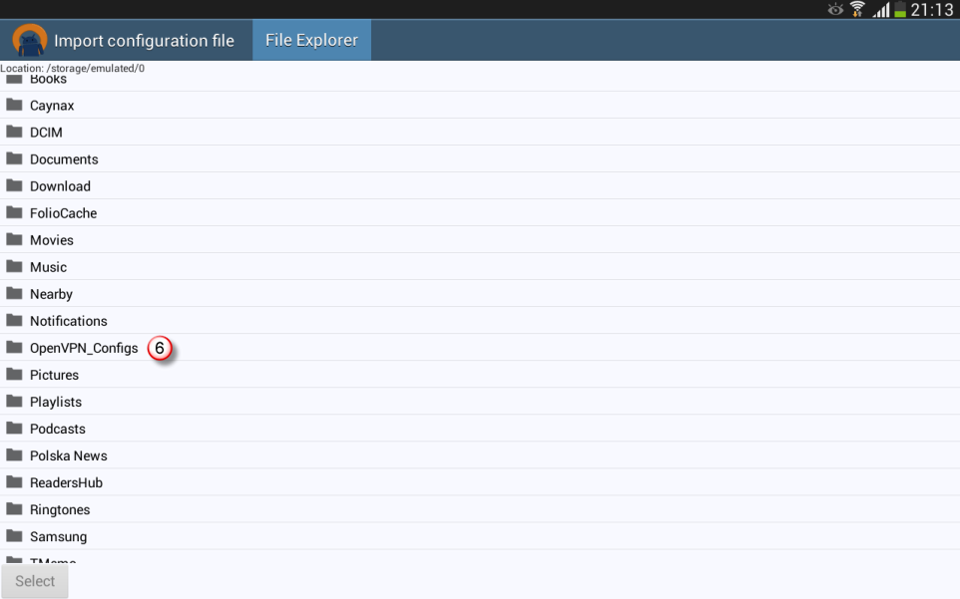
Step 5: From the File Manager, select the directory you copied earlier "OpenVPN_Configs" (6)
From the File Manager, select the directory you copied earlier "OpenVPN_Configs" (6)
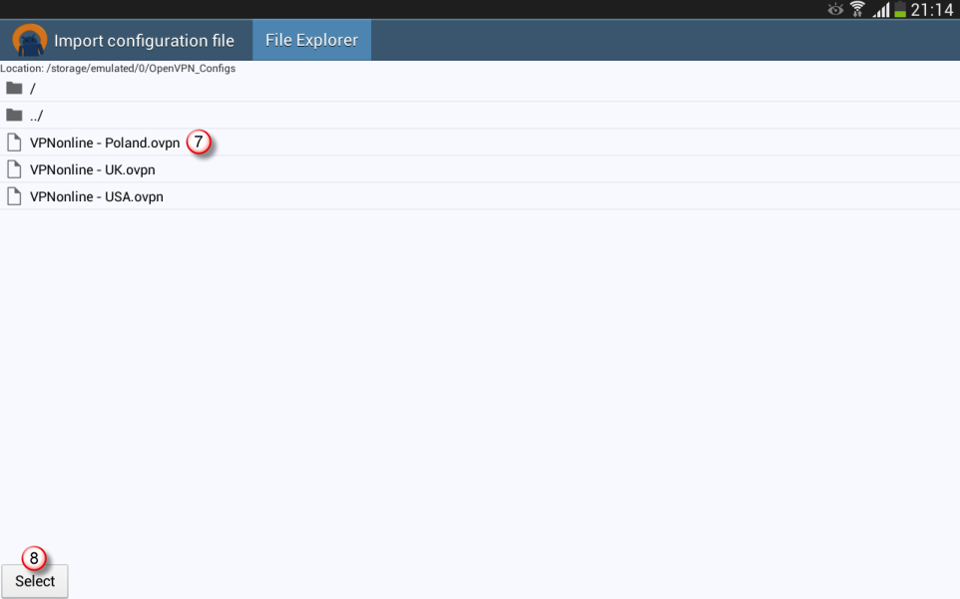
Step 6: Then, select one of configuration file *.ovpn from directory, for example: VPNonline…
Then, select one of configuration file *.ovpn from directory, for example: VPNonline - Poland.ovpn (7) and click "Select" (8)
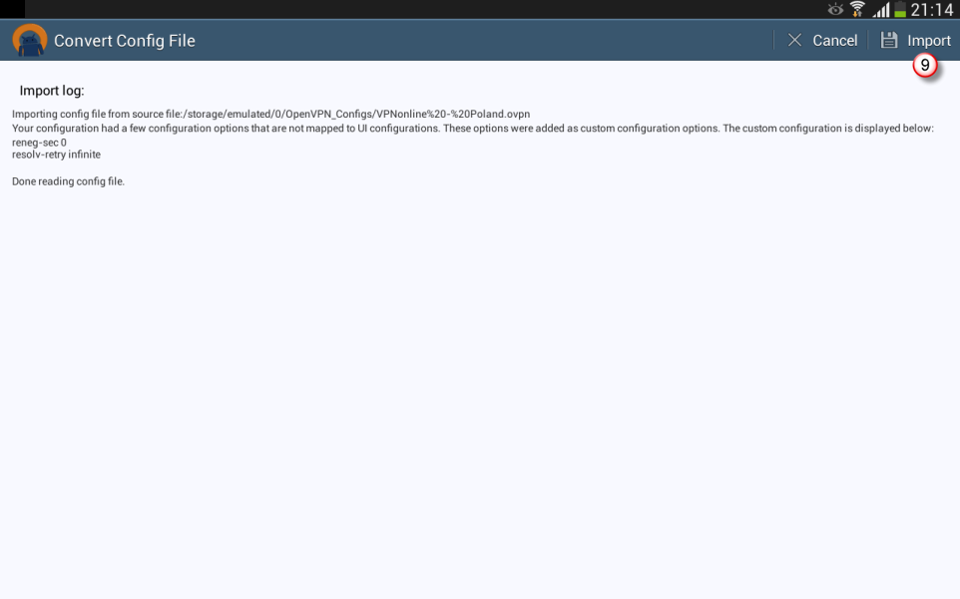
Step 7: Confirm the import configuration file by selecting "Import" (9)
Confirm the import configuration file by selecting "Import" (9)
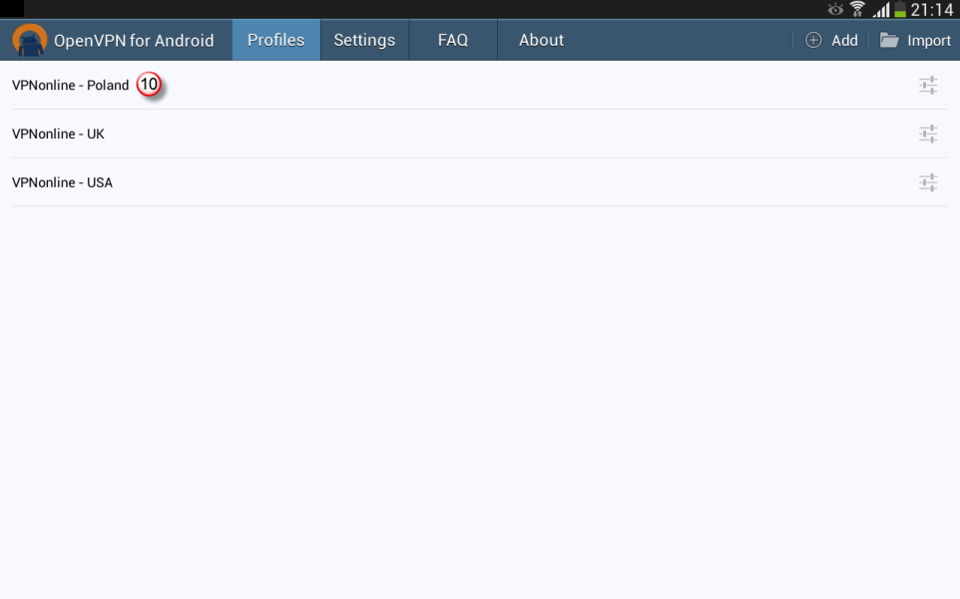
Step 8: If you want to import another configuration files *.ovpn , repeat the procedure from…
If you want to import another configuration files *.ovpn , repeat the procedure from step (4) To connect, click on the selected profile, for example: "VPNonline -Poland" (10)
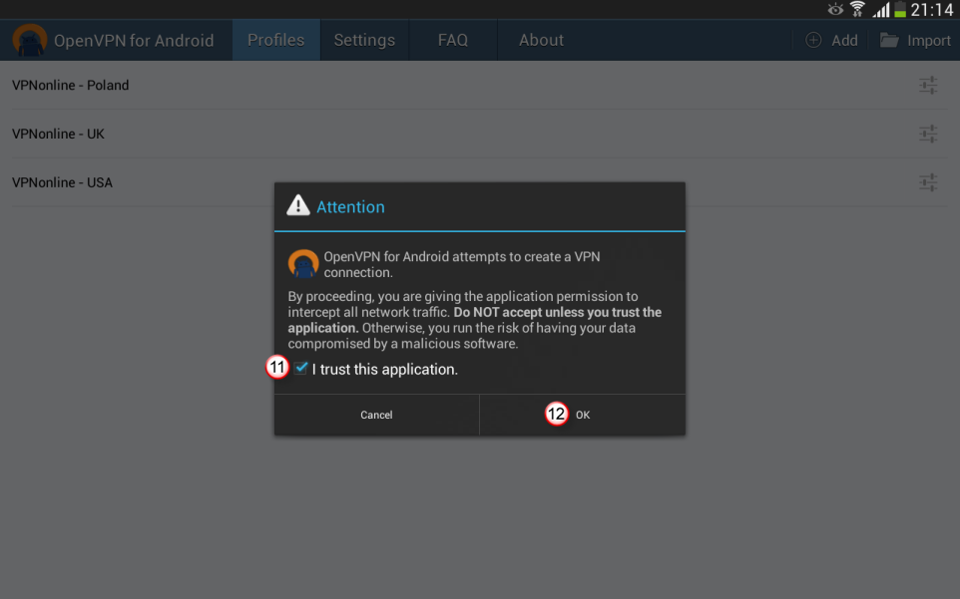
Step 9: You'll be asked to confirm, capture all network traffic (to the Internet) by the…
You'll be asked to confirm, capture all network traffic (to the Internet) by the application OpenVPN Select "I trust this application" (11) and click "OK" (12)
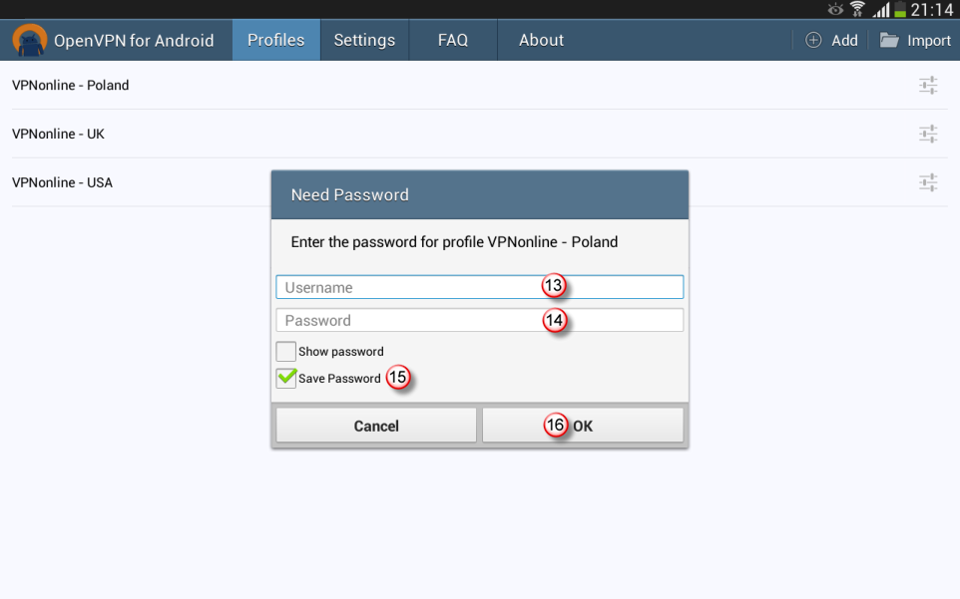
Step 10: In the "Username" (13) field, type your user name In the "Password" (14) field, type…
In the "Username" (13) field, type your user name In the "Password" (14) field, type your VPN password Select "Save Password" (15) then "OK" (16)
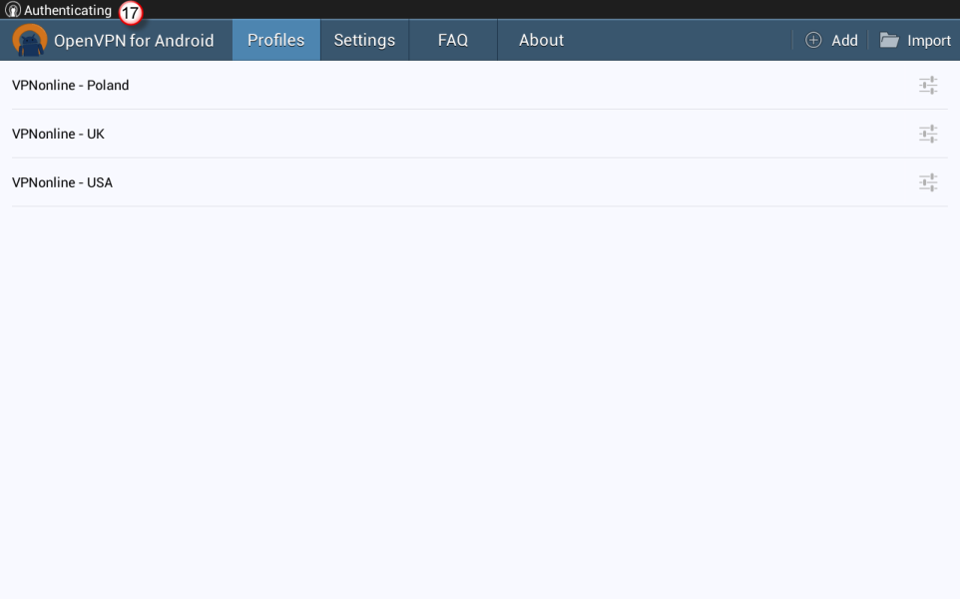
Step 11: During the establish VPN connection, we will see status of the VPN connection on the…
During the establish VPN connection, we will see status of the VPN connection on the top bar (17)
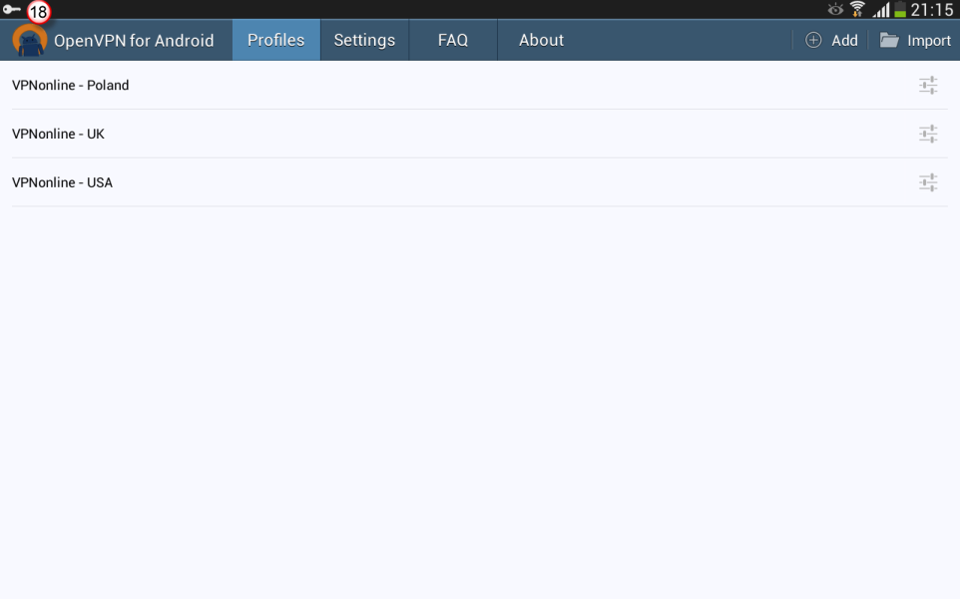
Step 12: After a successful connection, on the top bar we will see new icon "key" (18)
After a successful connection, on the top bar we will see new icon "key" (18)
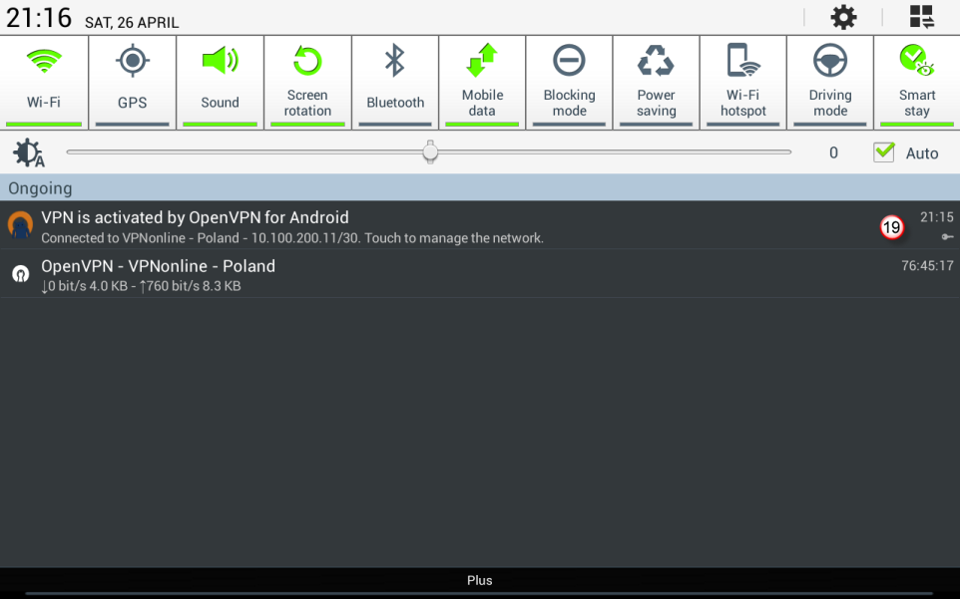
Step 13: We can expand top bar to see more information (19) about status of VPN connection
We can expand top bar to see more information (19) about status of VPN connection
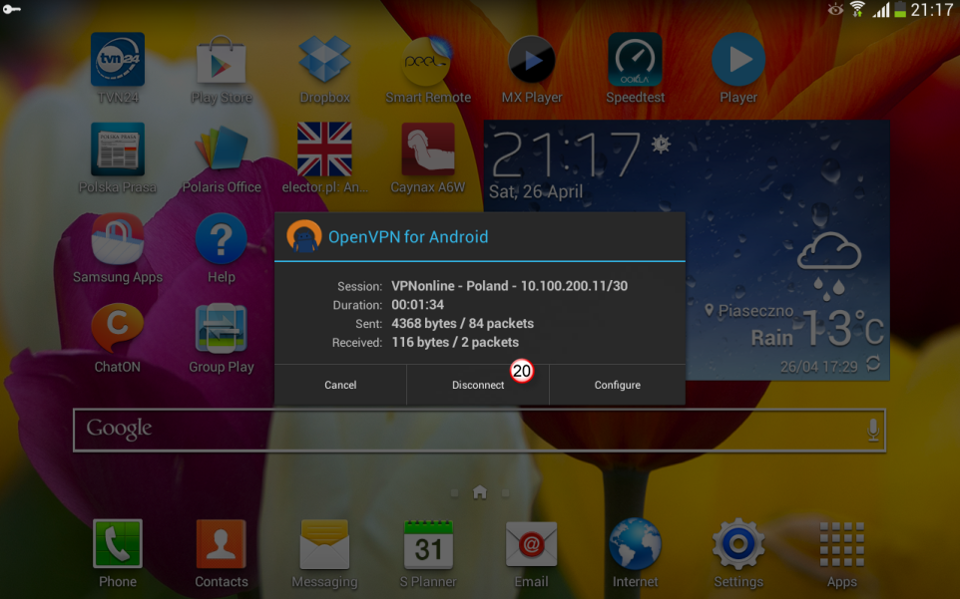
Step 14: To disconnect VPN connection, click "Disconnect" (20)
To disconnect VPN connection, click "Disconnect" (20)
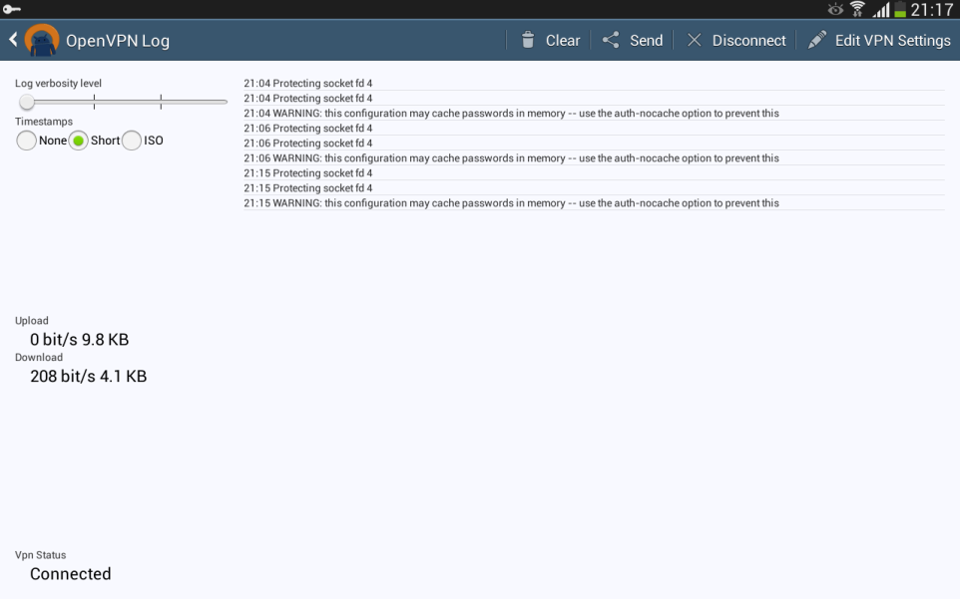
Step 15: If you have a problem with VPN connection, you can check the daily log by clicking…
If you have a problem with VPN connection, you can check the daily log by clicking "Log OpenVPN"


Check the connection
After the client connects, open the IP checker and compare the address and country with the selected server. Also test Internet access and DNS. A Connected status alone does not prove that all application traffic uses the tunnel.
If the connection fails
Authentication failed
Check the separate VPN username, connection password and service status in your account. Never include the password in a support request.
No Internet access or a certificate error
Download a fresh profile and check the device clock, DNS and routing. Keep certificate verification enabled. Include the device model, OS version and error message in a support request, with secrets removed.
Did this help?
We only store the answer, nothing about you.
Still not working?
Write to us. We will include this article's name, so we know what you already checked.