

Connecting, location and protocol on a TV
Updated 19 November 2026 · Applies to: VPNOnline Android TV / Google TV
Connect with one button, choose a country and server, and pick WireGuard or OpenVPN.
Step 1: Connect
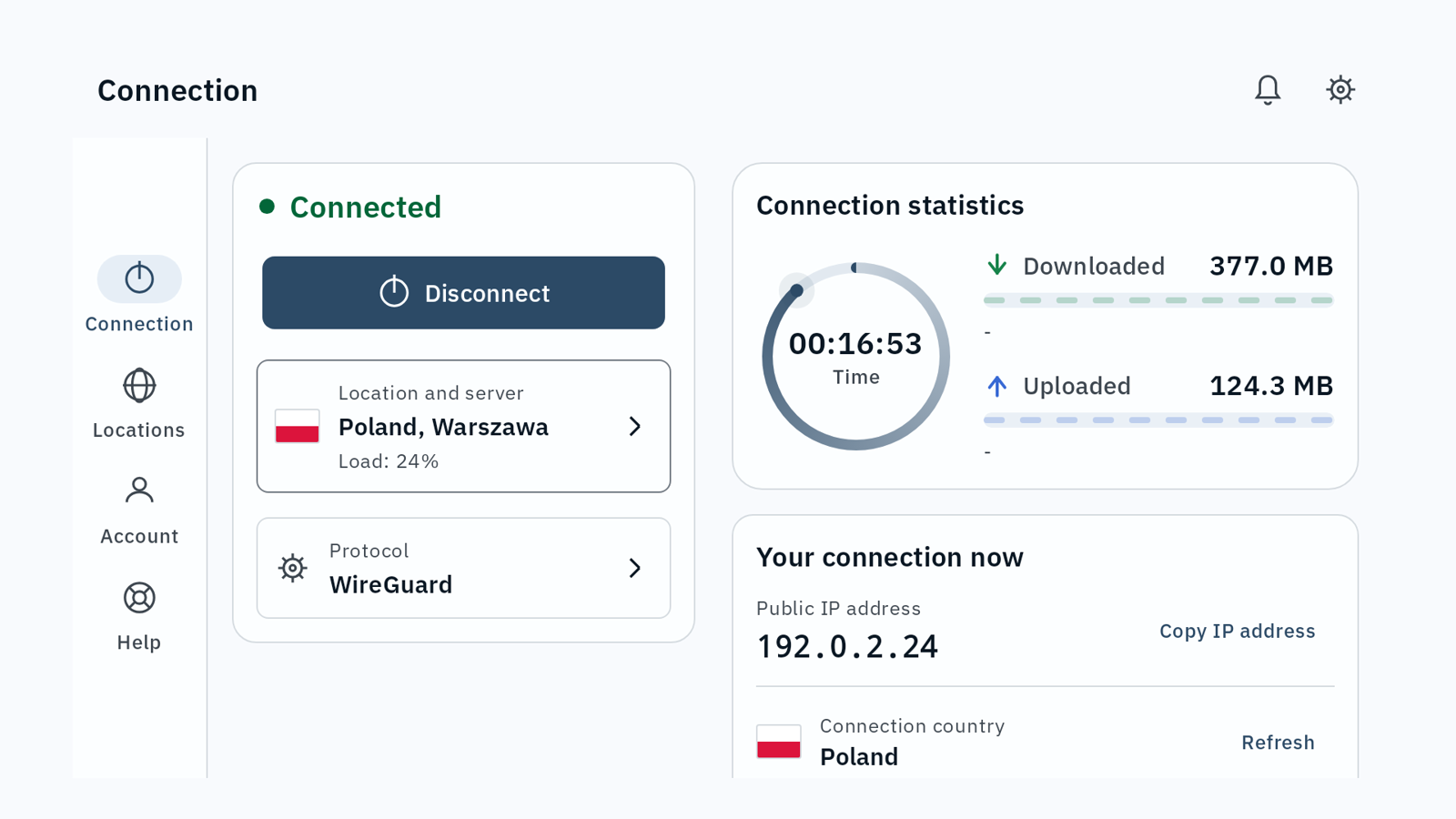
On the Connection screen press OK on Connect. On the right you see the connection time, data downloaded and uploaded, and the IP address the internet sees.
Step 2: Choose a location
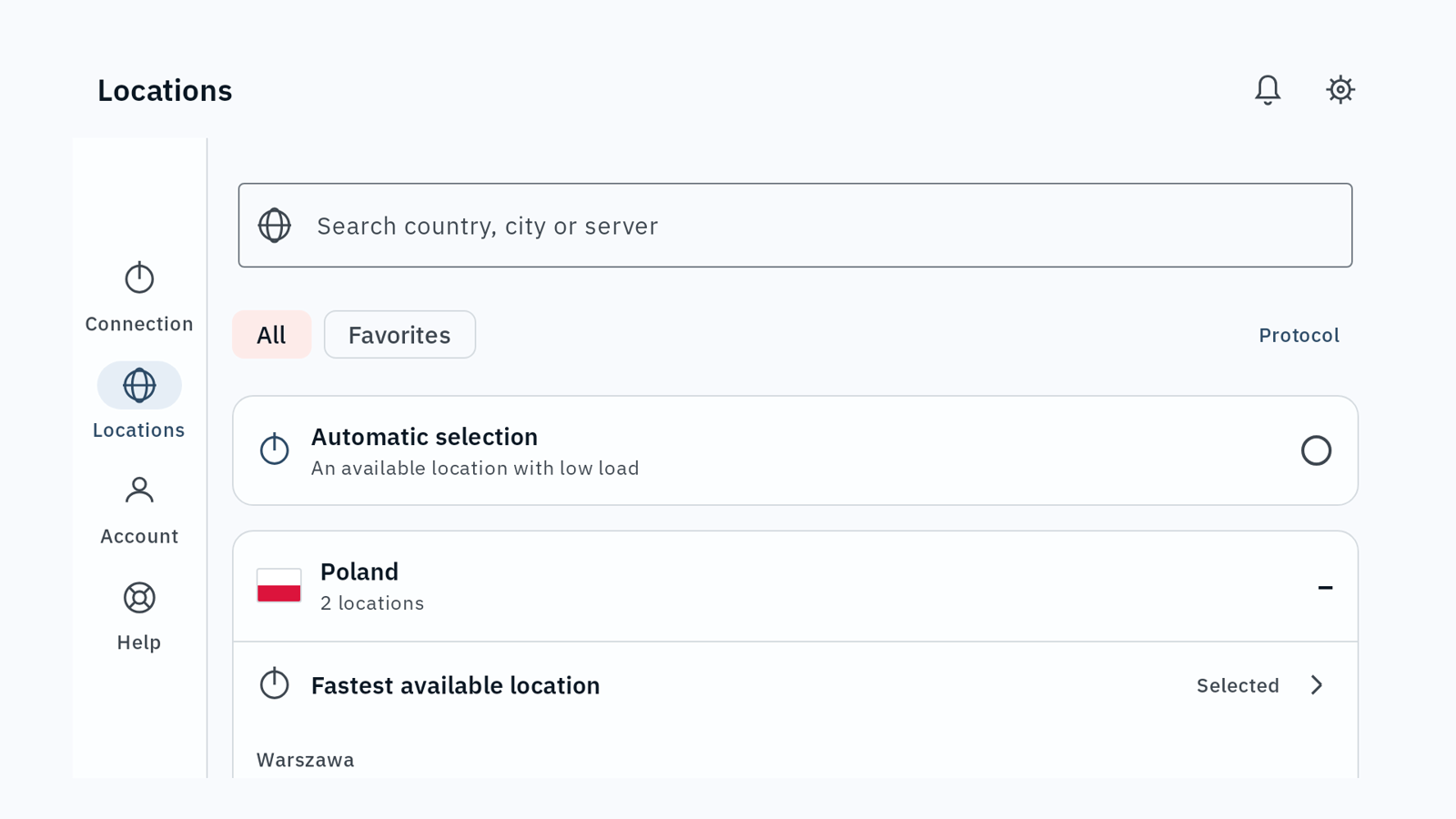
Choose Location and server, or Locations in the menu on the left. Automatic choice connects to an available location with low load; you can also pick a country and a specific location and add it to favourites.
Step 3: Choose a protocol
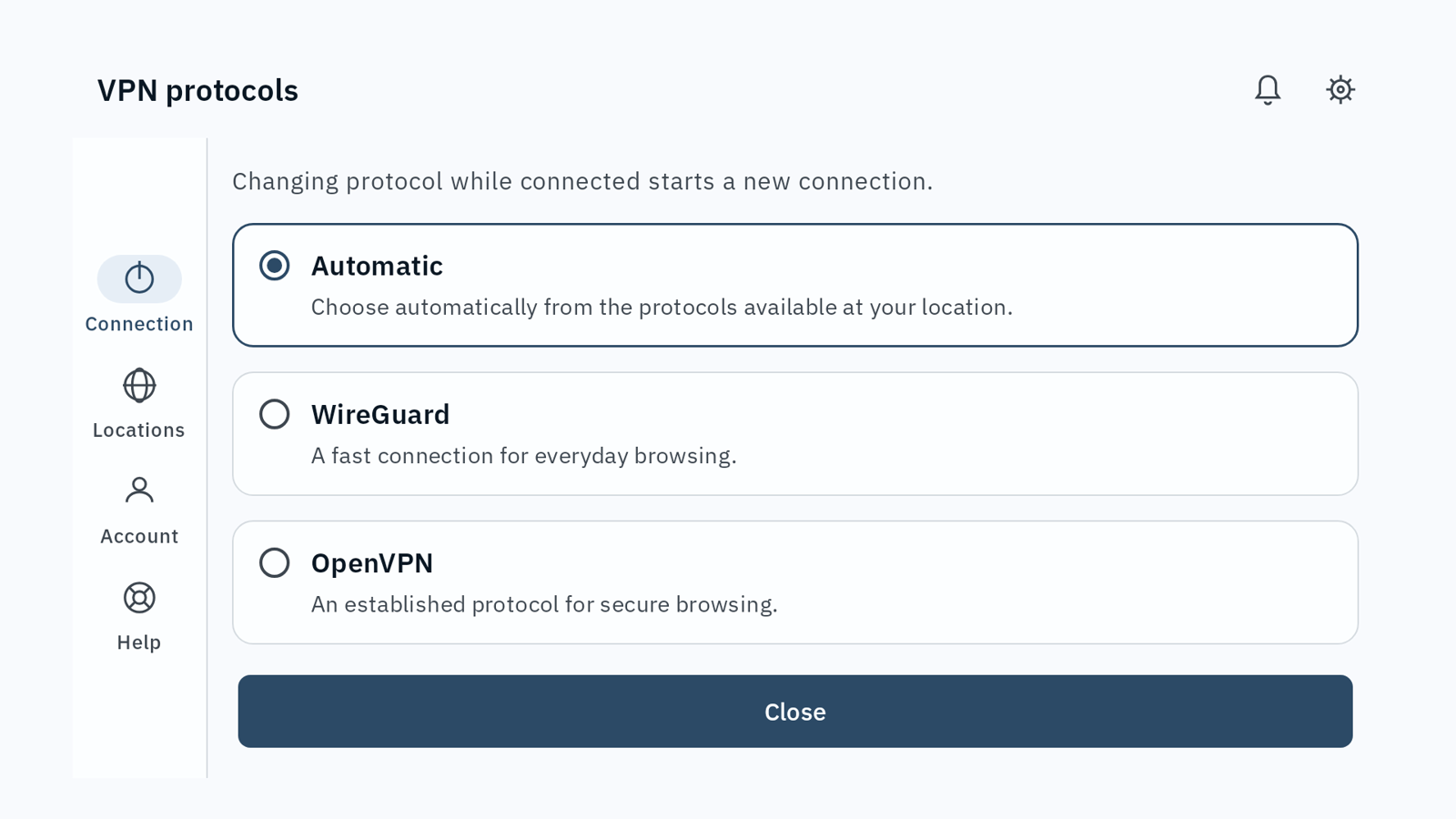
In Protocol choose Automatic (recommended), WireGuard or OpenVPN. With Automatic the app picks the protocol that works on your network.
No new sign-in
Changing the location or protocol does not ask for your password again.
Did this help?
We only store the answer, nothing about you.
Still not working?
Write to us. We will include this article's name, so we know what you already checked.