

Signing in a TV with a code or QR
Updated 19 November 2026 · Applies to: VPNOnline Android TV / Google TV
Approve the TV sign-in on your signed-in phone or in a browser - no password typing with the remote.
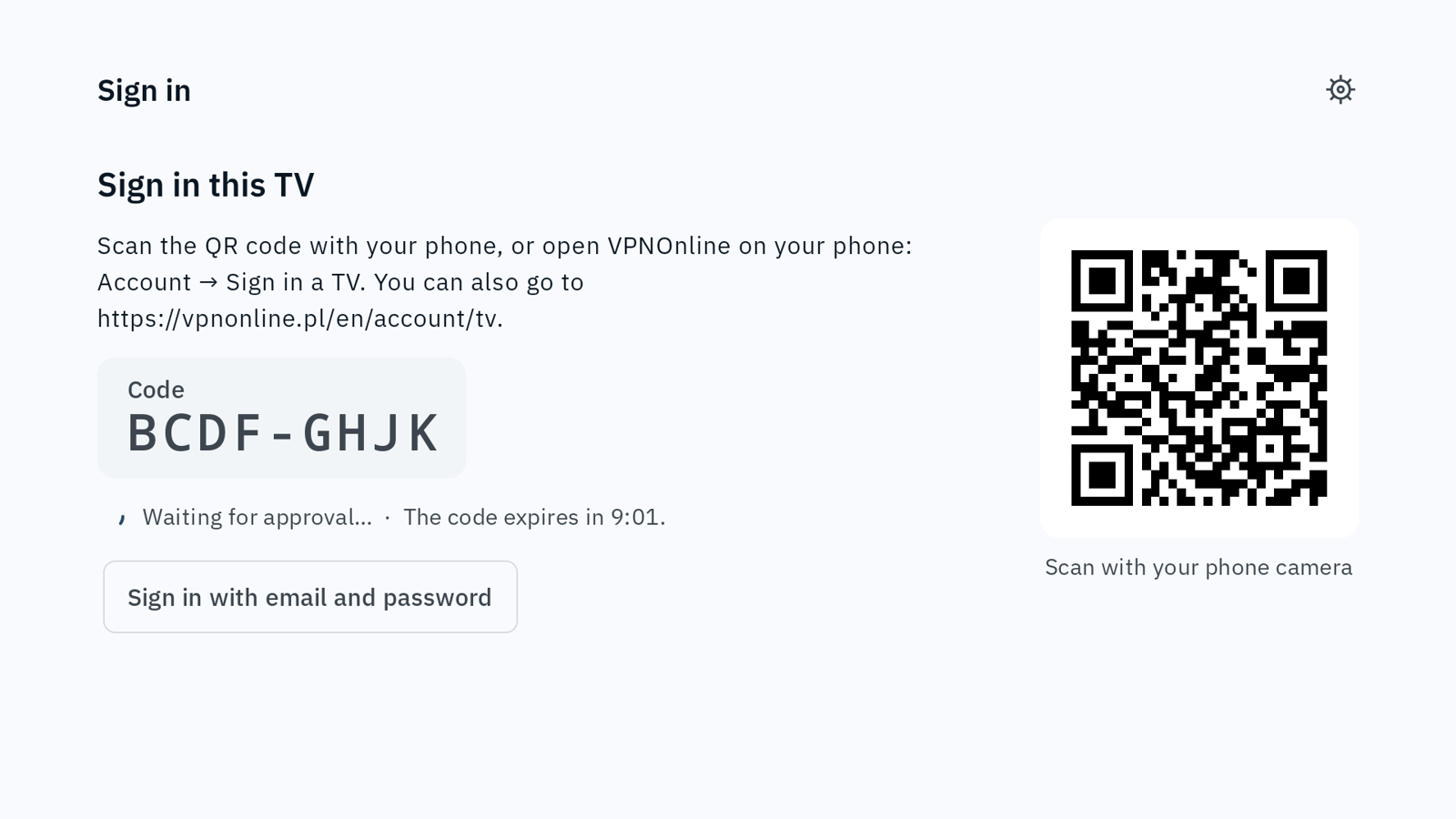
The TV shows an eight-character code and a QR code. The code is valid for 10 minutes; after that choose Show a new code.
On a phone with the VPNOnline app
Step 1: Open the approval
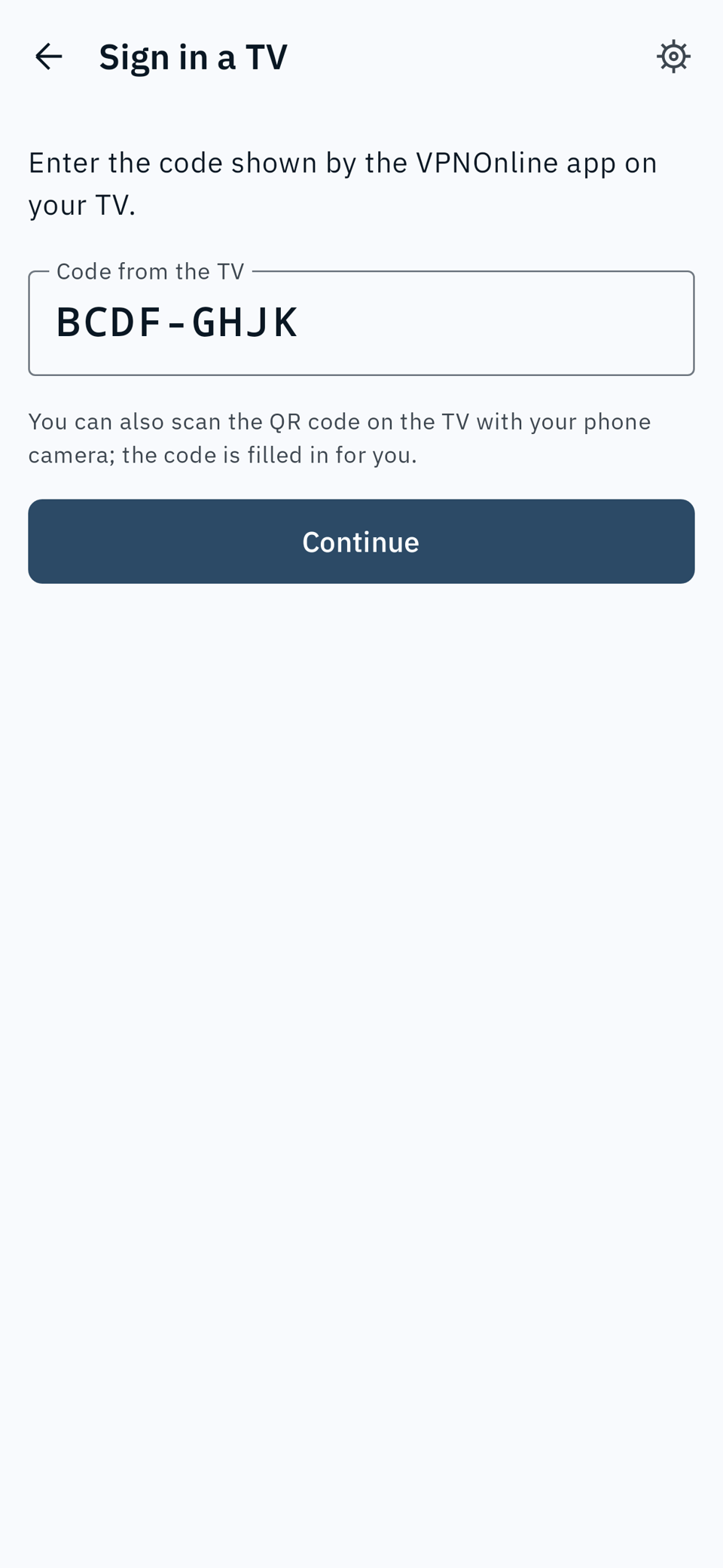
Scan the QR code with your phone camera - the app opens with the code filled in. You can also choose Account → Sign in a TV in the app and type the code.
Step 2: Check and approve
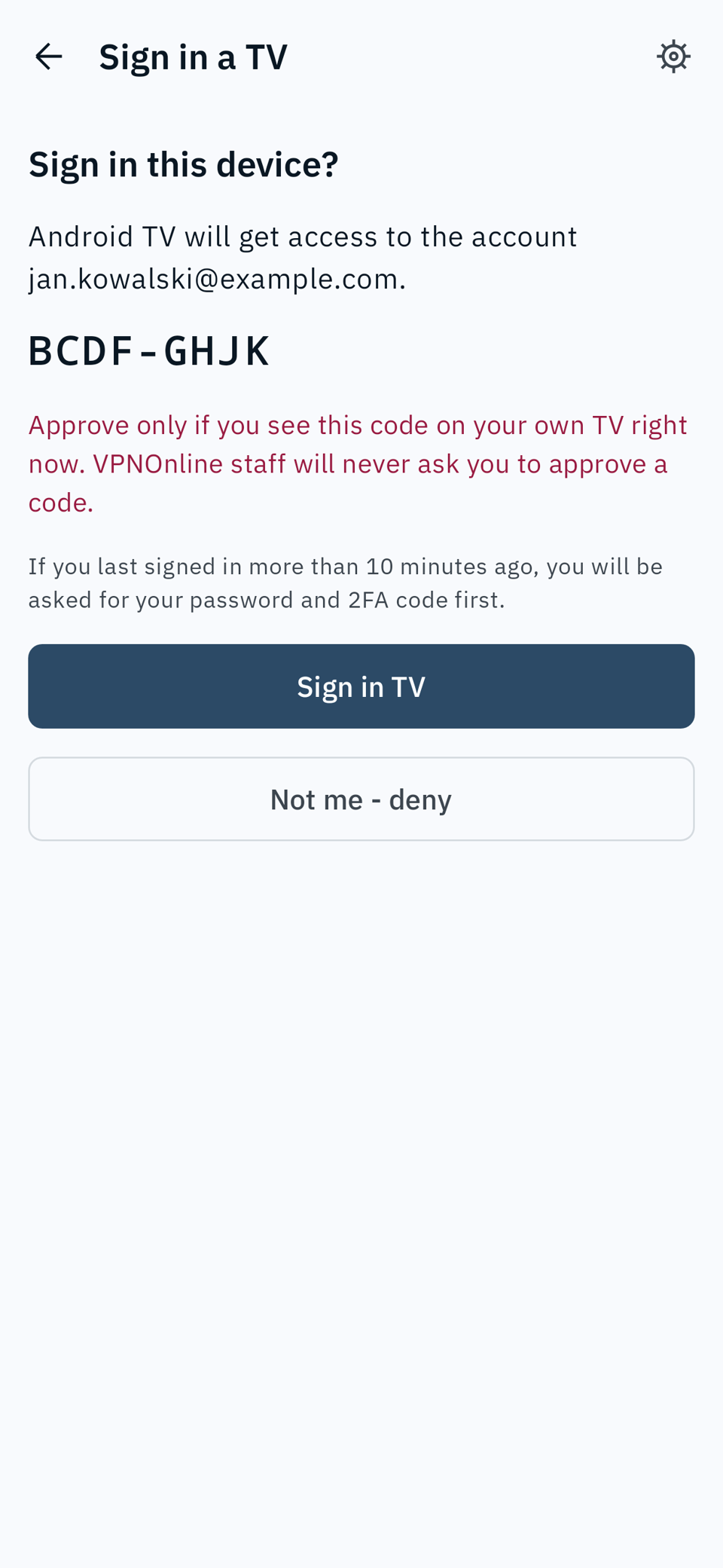
Make sure it is the code shown on your own TV and choose Sign in TV. If you last signed in on the phone more than 10 minutes ago, the app first asks for your password and 2FA code, then approves the TV by itself.
In a browser
Scan the QR code with a phone that does not have the app, or open the page shown on the TV (vpnonline.pl/en/account/tv), sign in to your account and approve the code. The portal may ask for your password and 2FA code again.
Approve only your own TV
Approve the code only if you see it on your own TV right now. VPNOnline staff will never ask you to approve a code. If it was not you, choose Not me - deny.
Did this help?
We only store the answer, nothing about you.
Still not working?
Write to us. We will include this article's name, so we know what you already checked.