

VPNOnline on your TV - getting started
Updated 19 November 2026 · Applies to: VPNOnline Android TV / Google TV
Install the app on Android TV or Google TV, sign in with a code from your phone and connect with the remote.
Step 1: Install the app
On the TV open Google Play, search for VPNOnline and select Install. The app works on Android TV and Google TV running Android 10 or later.
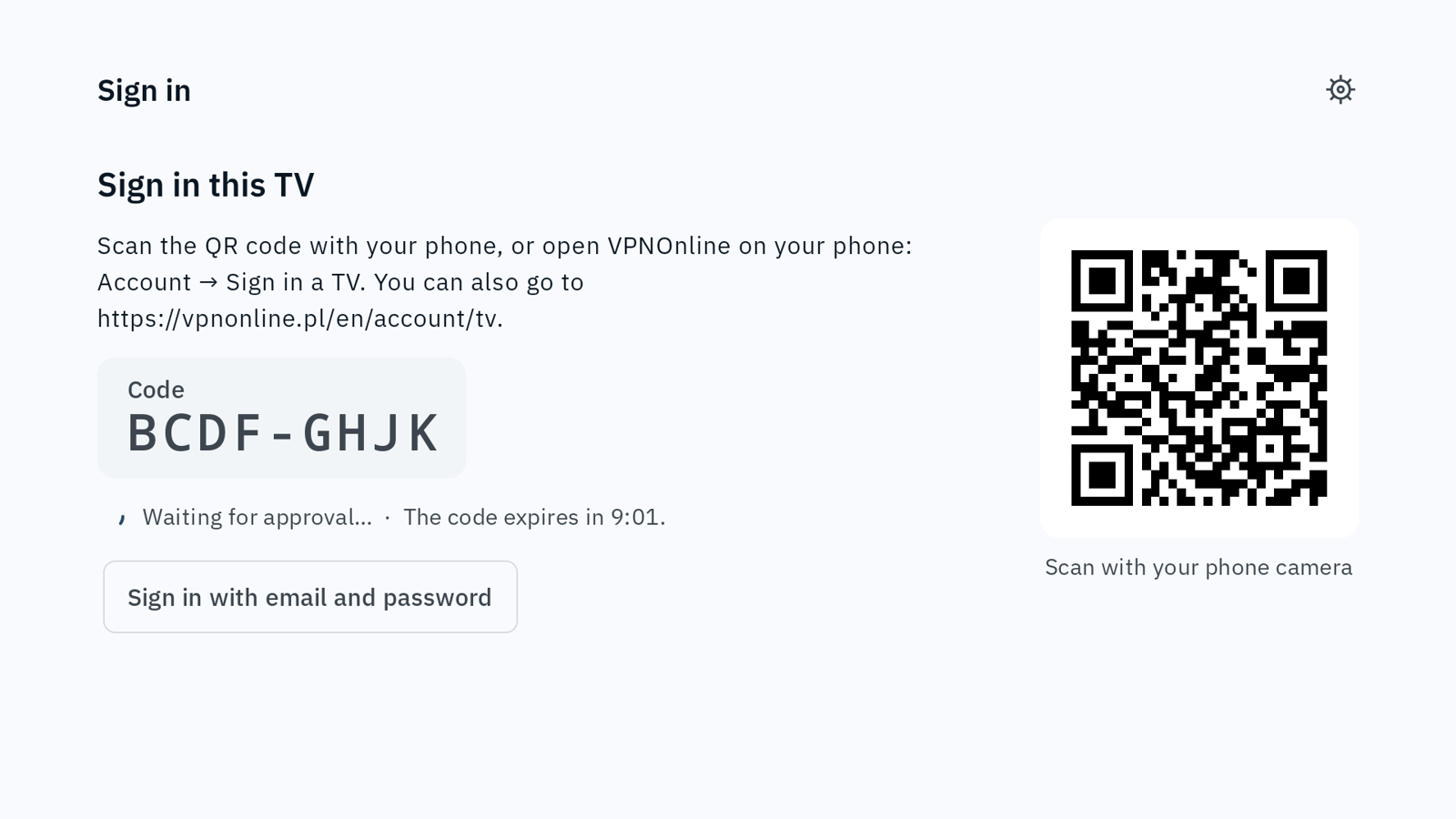
Step 2: Sign in with a code
When the app starts, the TV shows a code and a QR code. Scan the QR code with your phone, or in the VPNOnline app on your phone choose Account → Sign in a TV and enter the code. You do not type your password on the TV.
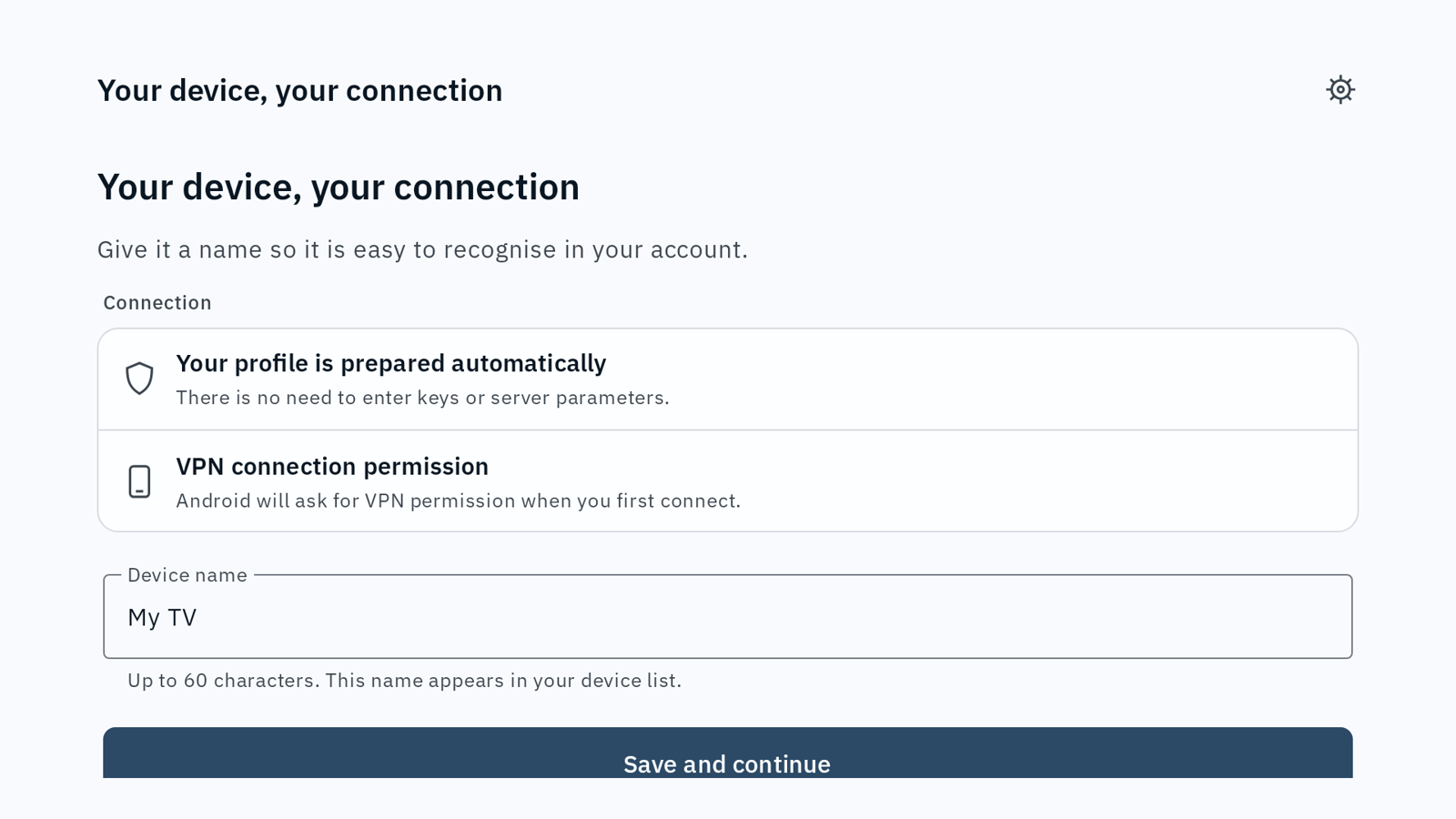
Step 3: Name the TV
On the first sign-in the app suggests the name “My TV”. Press OK to keep it, or change it if you have several TVs. The name appears in your account's device list.
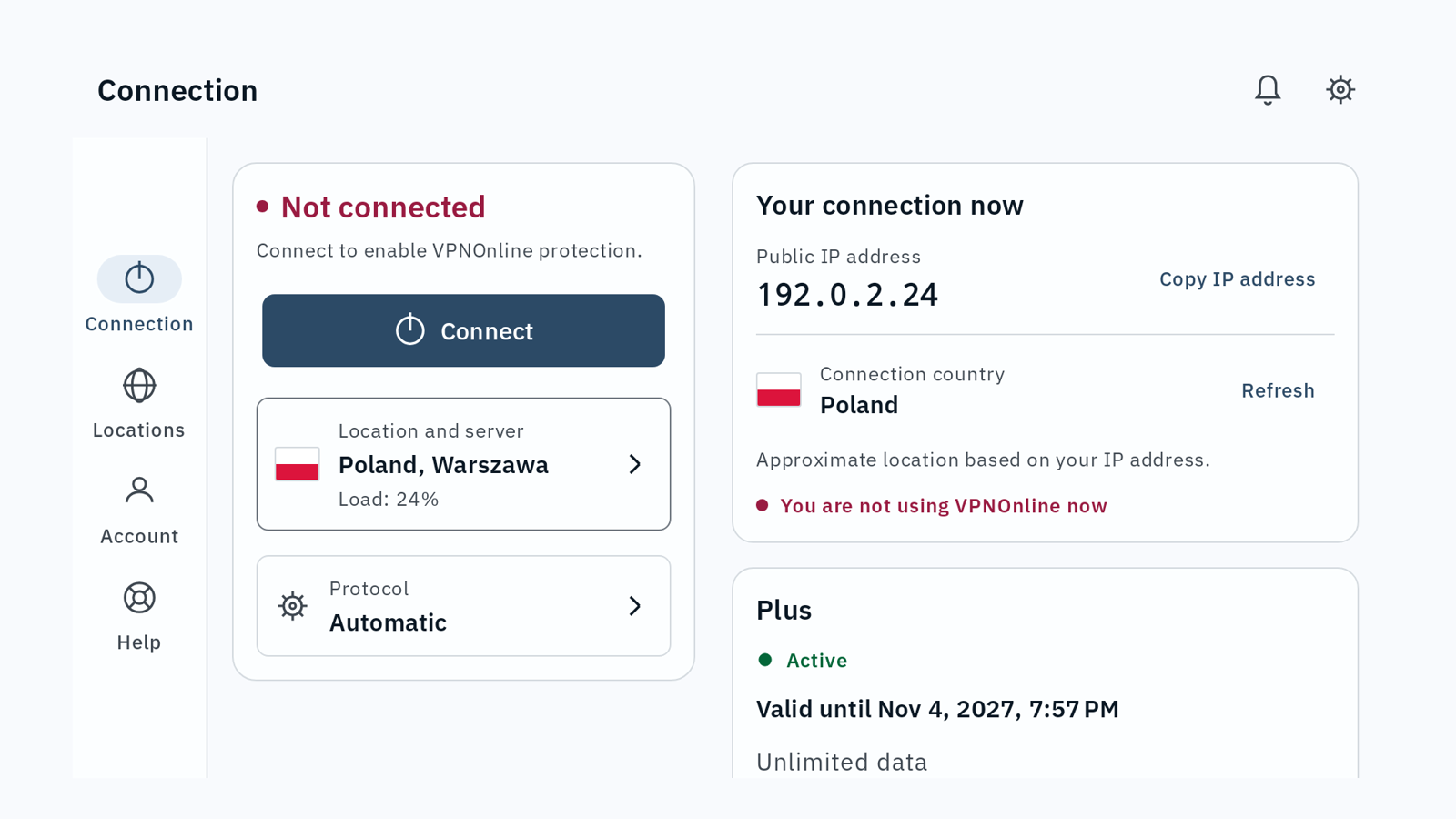
Step 4: Connect
On the Connection screen the remote already points at Connect - press OK. On the first connection Android asks you to allow the VPN; choose OK. A green Connected label means the app has verified the connection.
Using the remote
The menu is on the left: Connection, Locations, Account and Help. Arrows move the highlight, OK selects and Back returns to the previous screen.
Did this help?
We only store the answer, nothing about you.
Still not working?
Write to us. We will include this article's name, so we know what you already checked.